GLB to USDZ: How to Show a 3D Model in AR on iPhone
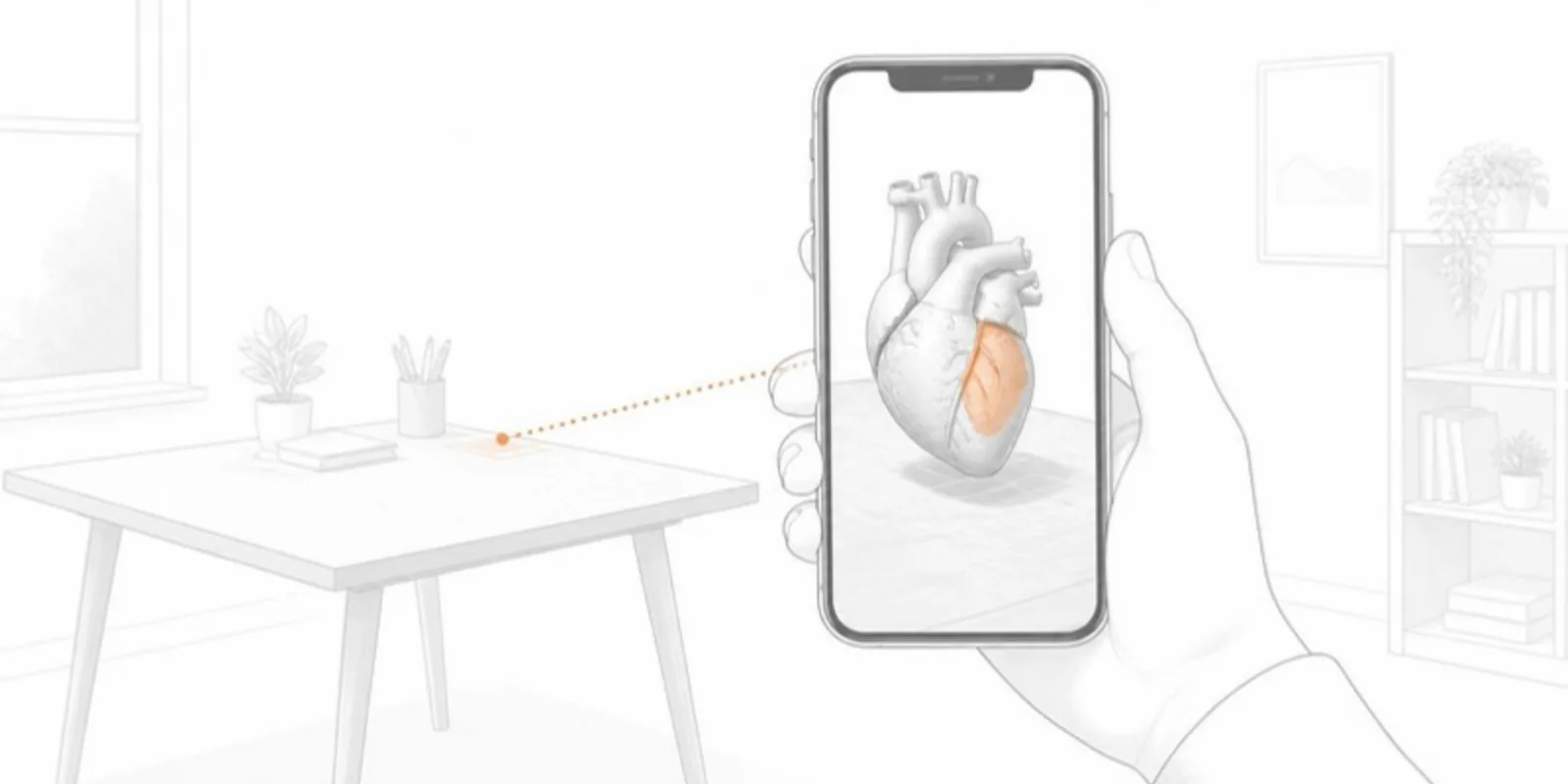
You have a GLB that opens in the browser and in AR on Android, and on an iPhone the View in AR button does nothing useful. That’s not a bug in your model: Apple’s AR viewer, AR Quick Look, uses a different file format, USDZ. To reach both platforms you need both files, or a viewer that serves the right one to each device.
Why iPhone needs USDZ
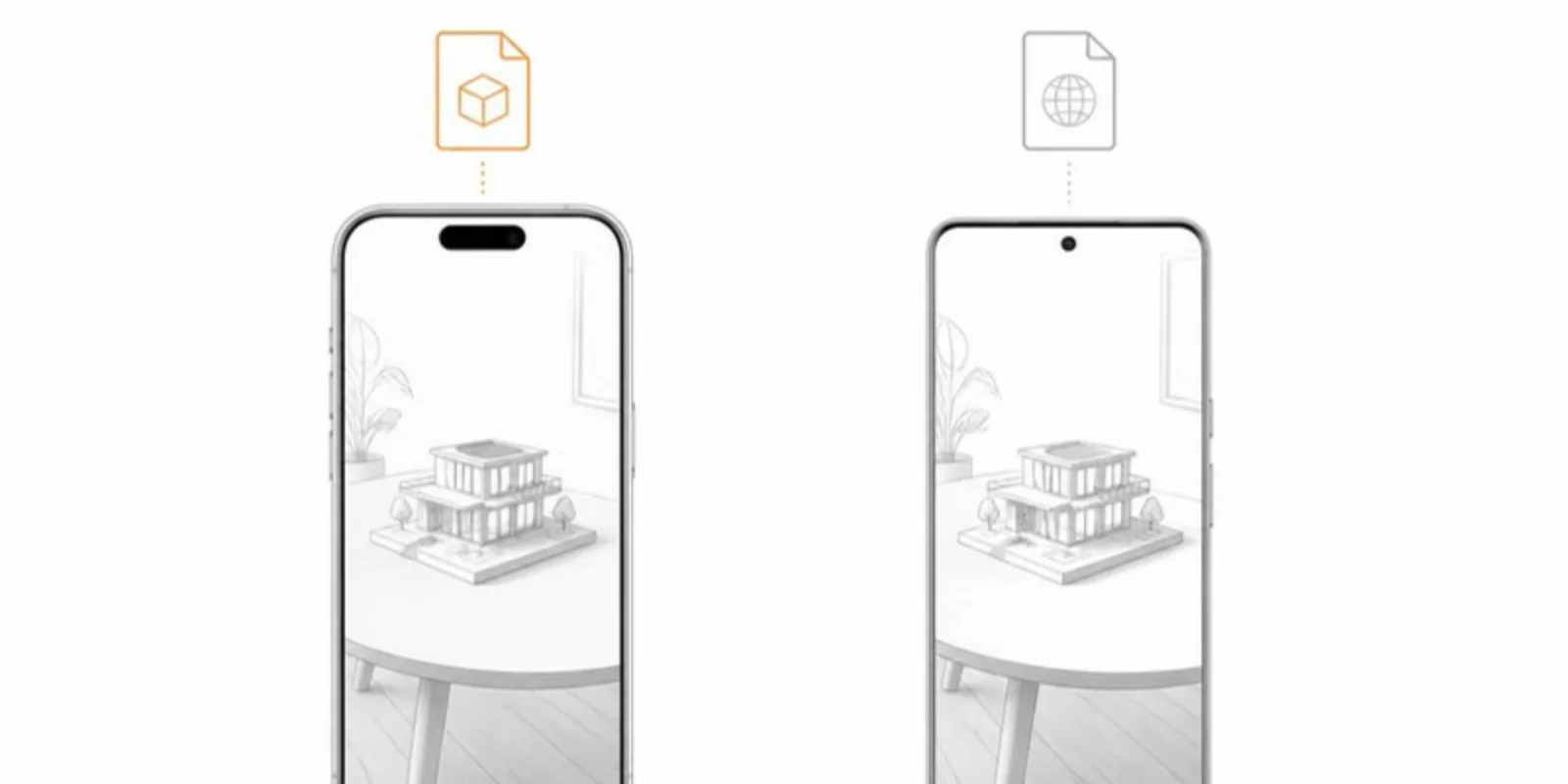
GLB (glTF 2.0) is the open standard used by browsers, Android’s Scene Viewer, and most web 3D tools. USDZ is Apple’s packaged version of Pixar’s Universal Scene Description, and it is what AR Quick Look opens on iPhone and iPad. Quick Look launches straight from Safari (and from other browsers on iOS when the page links the USDZ properly), with no app to install.
Some web viewers can generate a USDZ in the browser on the fly, but that only works in Safari and fails in in-app browsers, which is exactly where people open links from email and messaging apps. A real USDZ file next to the GLB is the reliable route.
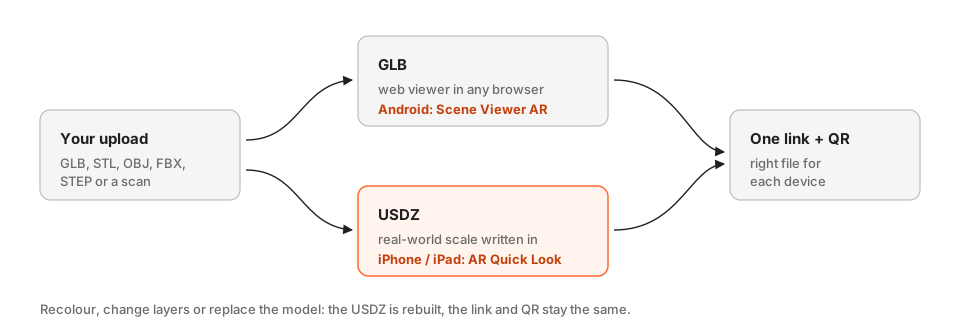 One link, two files: GLB for browsers and Android, USDZ for iPhone AR.
Free ways to convert GLB to USDZ
- Reality Converter (free, macOS). Drag in a GLB, check the preview and the materials, and export a USDZ.
- Blender. Import the GLB (File → Import → glTF 2.0) and export with the
USD exporter, choosing
.usdz. - A hosted viewer that does it for you, so you never handle two files.
Whichever you use, open the USDZ on an iPhone before you share it. The two problems you’ll see are scale (the model appears at the wrong size) and materials that don’t carry over exactly.
Automatic USDZ with AcademicAR
When you upload a model (GLB, STL, OBJ, FBX, STEP, or a medical scan), AcademicAR builds the web GLB and a USDZ companion from it automatically, with the real-world scale written into the file. The public viewer link then does the right thing on every device:
- in a desktop browser, the model is interactive in 3D;
- on Android, View in AR hands the GLB to Scene Viewer;
- on iPhone and iPad, View in AR opens the USDZ in AR Quick Look.
If you recolour the model, change its layers, or replace the file, the USDZ is rebuilt so iPhone AR stays in step with what the browser shows. The QR code doesn’t change.
Tips for good AR on iPhone
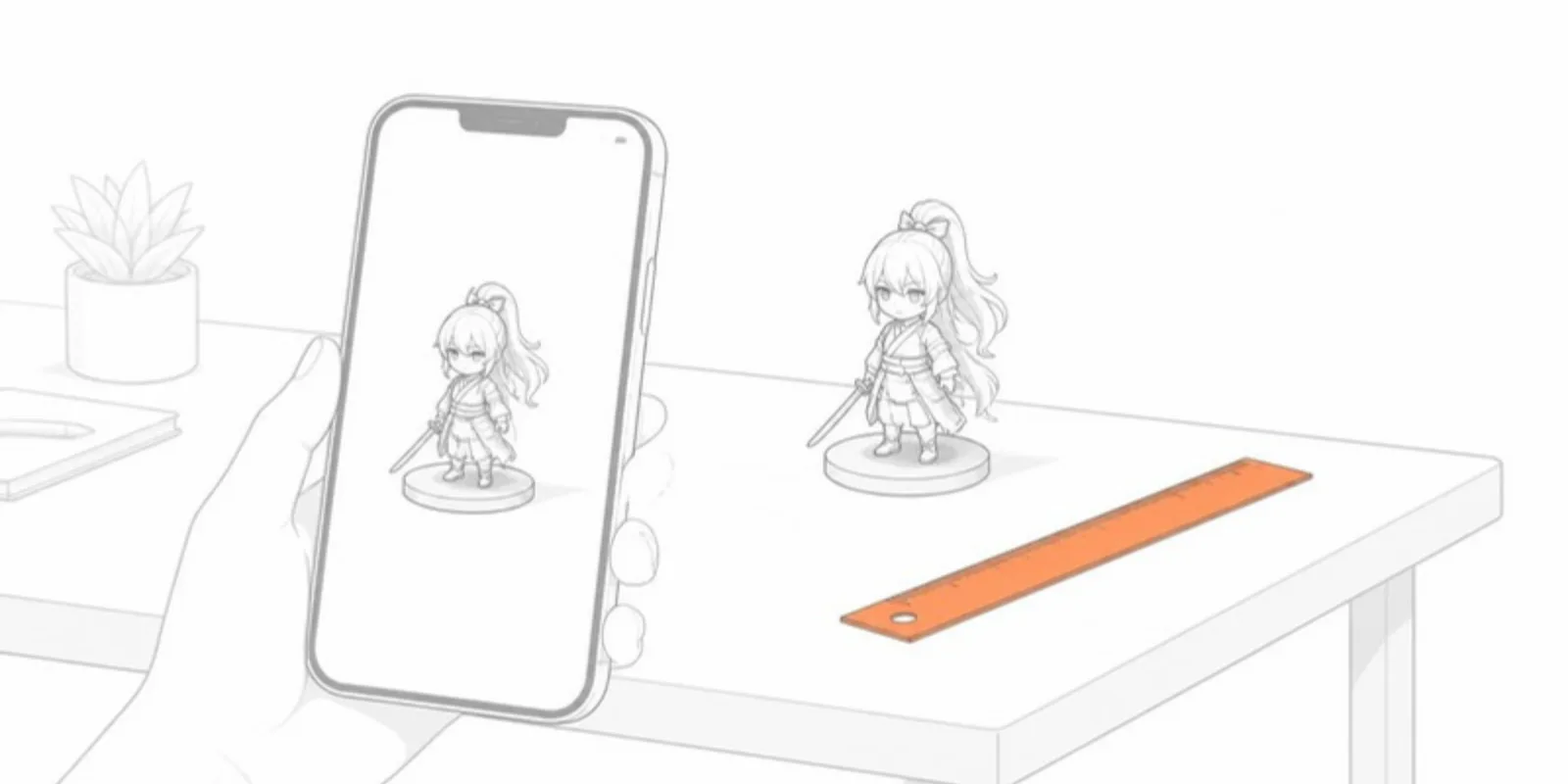
- Get the units right first. A model exported in millimetres but read as metres appears a thousand times too big. Fix the unit before converting.
- Keep it light. AR runs on a phone. Decimate dense scans to a few hundred thousand triangles; nobody can see more on a 6-inch screen.
- Test in the place you’ll use it. AR needs a textured, well-lit surface to find the floor or table. A plain white desk under dim light is the hardest case.
For the other direction, opening a GLB on every device, see How to open a GLB file.
Frequently asked questions
Can an iPhone open a GLB file?
Not in AR Quick Look, which needs USDZ. A web viewer can show a GLB in 3D in Safari, but to place the model in your room on an iPhone you need a USDZ version of it.
Is USDZ the same as USD?
USDZ is a zipped, single-file package of a USD scene and its textures. Apple’s AR Quick Look opens USDZ, not loose USD files.
Do I need an app to view USDZ on iPhone?
No. AR Quick Look is built into iOS and iPadOS. Tapping a properly linked USDZ in Safari opens the model in AR directly.
Create a free account and upload a model to get a GLB, a USDZ, and one link that opens AR on any phone.
Related guides
-
How to Open a GLB File on Desktop, iPhone, and Android
What a GLB file is and how to open it on Windows, Mac, iPhone, and Android, why iPhones need USDZ for AR, and how to share a GLB as a link.
-
How to Convert OBJ and FBX to GLB Without Losing Textures
Convert OBJ (with its MTL and textures) and FBX to GLB for the web: what each format carries, the free tools, and how to keep materials,...
-
How to Convert STL to GLB (and Why It Matters for Sharing)
Convert STL to GLB for the web: set units and colour, keep the file small with Draco, and get a viewer link, AR, and a QR code in one step.