How to Convert OBJ and FBX to GLB Without Losing Textures
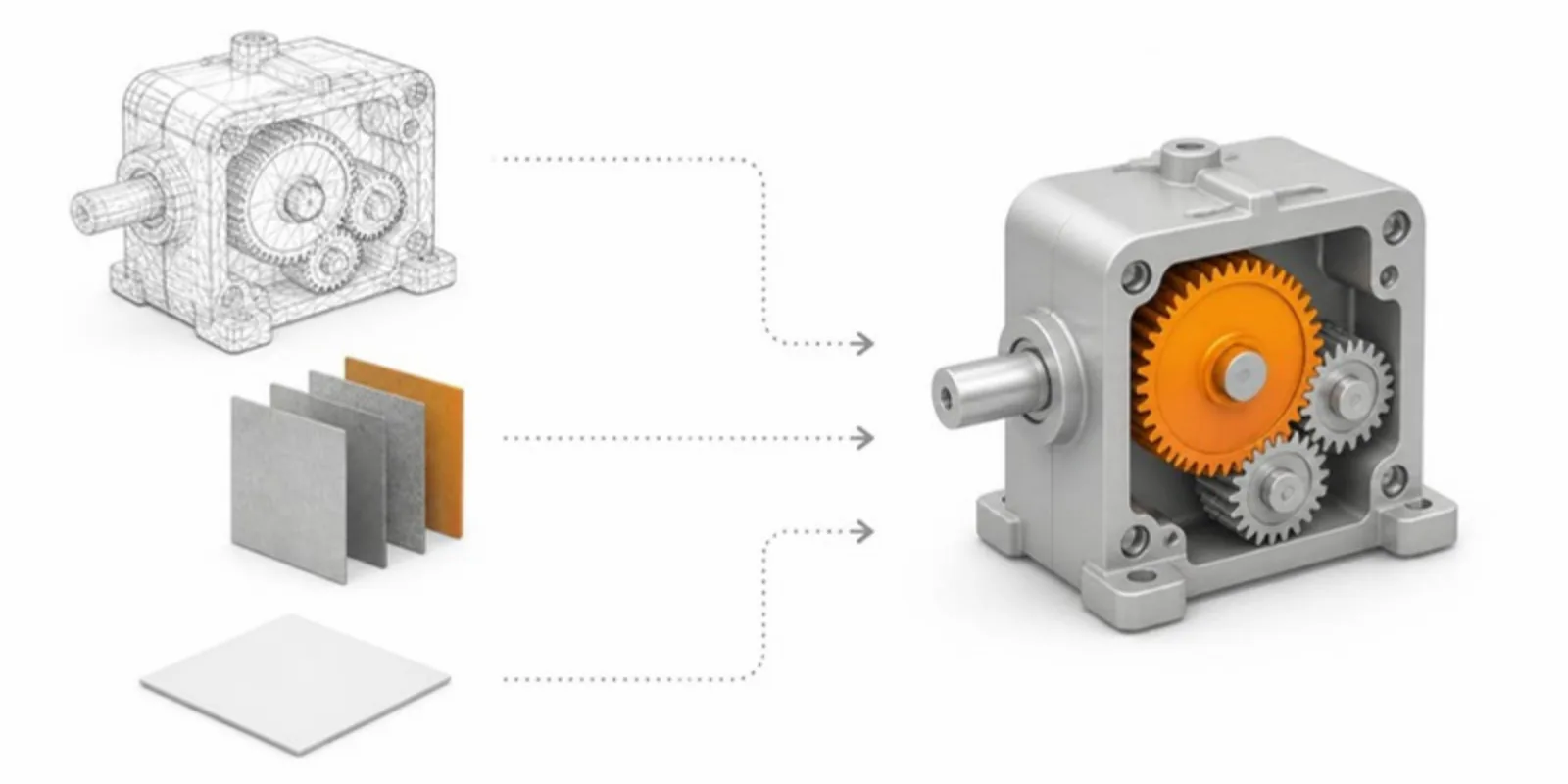
OBJ and FBX are two of the most common formats you’ll get out of scanners, modelling tools, and CAD exports. Neither is what a browser or phone wants to load: the web runs on GLB, the single-file form of glTF 2.0. Converting is easy to get almost right, and the usual failures are the same every time: missing textures, a model the size of a building, or a multi-part object welded into one grey lump. Here’s how to avoid all three.
What OBJ and FBX actually carry
OBJ is a plain-text mesh format. The .obj file holds geometry and texture
coordinates, but its colours and materials live in a separate .mtl file, and
the images that file points to (.png, .jpg) sit next to it. Lose any of those
and the model arrives untextured. OBJ also has no units.
FBX (Autodesk) is a binary scene format. It can hold several meshes, a hierarchy of parts, materials, textures (embedded or referenced), and the unit the scene was modelled in. That makes it richer than OBJ, but it is proprietary, so web viewers can’t read it directly.
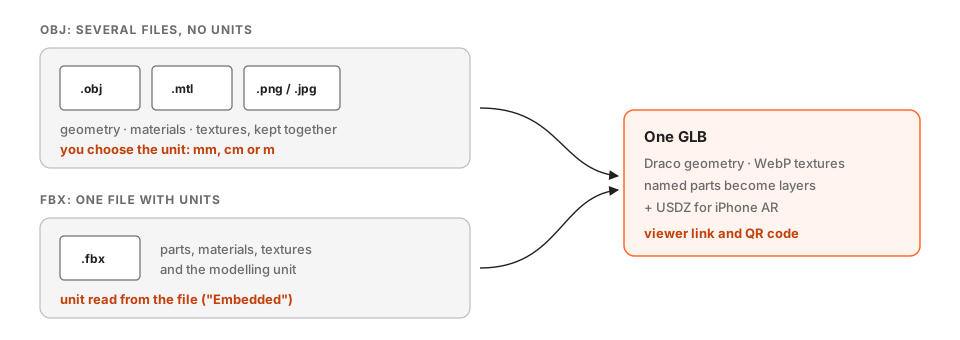 An OBJ needs its MTL and textures alongside it; an FBX brings its own units.
For a side-by-side of all the common formats, see GLB vs STL vs glTF vs OBJ.
Free tools that convert OBJ and FBX to GLB
- Blender. Import the OBJ or FBX, check the scale and materials, then
File → Export → glTF 2.0 and choose the binary
.glboption. The most control, and the most clicks. - obj2gltf. An open-source command-line converter from Cesium for OBJ. Point
it at the
.objand it picks up the.mtland textures from the same folder. - FBX2glTF. An open-source command-line converter for FBX that writes glTF materials (physically based rendering) from FBX materials.
All three work. What they don’t do is host the result, make it open in AR on an iPhone, or give you a link to send.
Converting OBJ and FBX with AcademicAR
AcademicAR runs the same open-source converters for you and then does the web work on top:
- Create a project and choose Upload model.
- For OBJ: select the
.obj, then add its companion files (the.mtland the texture images it references) in the field that appears. Pick the source unit (mm, cm, or m), because OBJ can’t tell us. - For FBX: select the
.fbx. The unit is read from the file, so Embedded is selected for you; you can override it if the exporter got it wrong. - Confirm the compliance checkbox and upload.
The result is an optimized GLB (Draco-compressed geometry, WebP textures), a USDZ for iPhone AR, a viewer link, and a stable QR code.
Keep parts separate
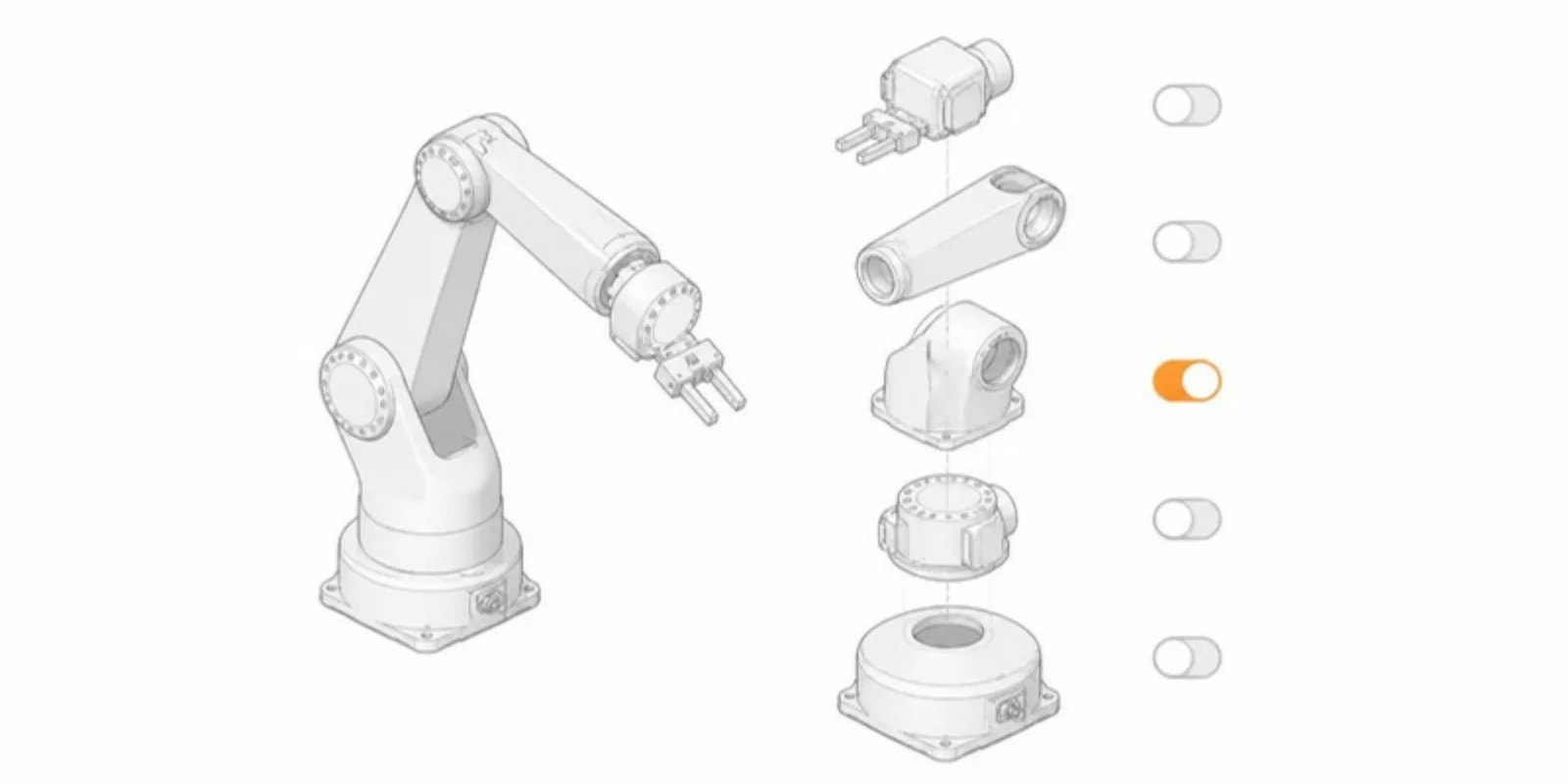
If your OBJ or FBX contains several named objects, they become separate layers in the viewer: readers can hide, isolate, and recolour each part. Name the parts in your modelling tool before exporting (“housing”, “rotor”, “left kidney”), because those names become the layer names. One merged object stays one layer.
Troubleshooting
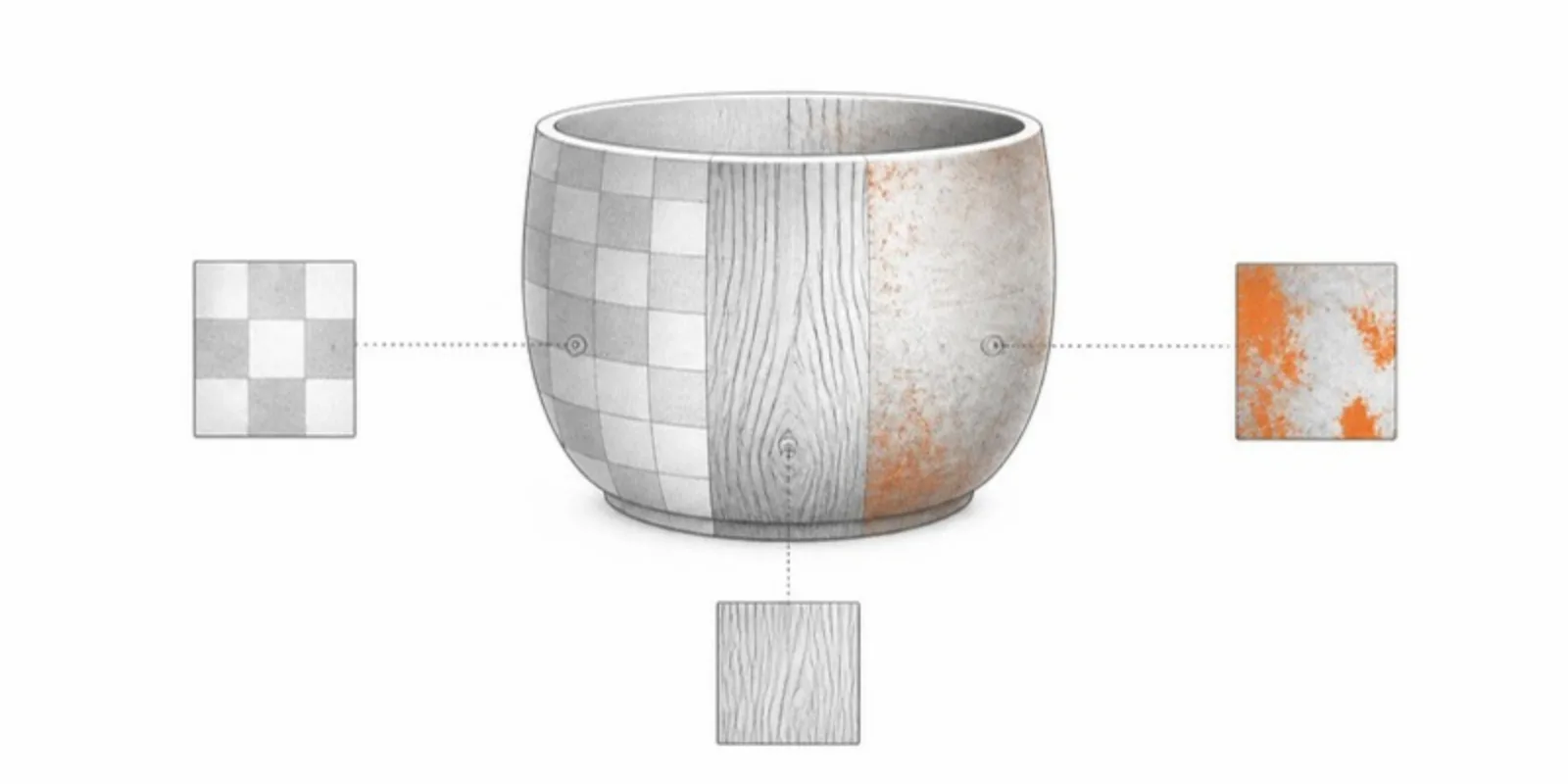
- The model is untextured. For OBJ, the
.mtlor the images weren’t uploaded, or the.mtlrefers to them by an absolute path from the author’s computer. Open the.mtlin a text editor and make the texture paths plain file names. - The model is huge or tiny. The unit was wrong. You can change it later on the model’s edit page without re-uploading.
- Everything is one colour. The source had no materials, or all parts shared one. Recolour layers in the viewer, or assign distinct materials before export.
Frequently asked questions
Can I convert OBJ to GLB without losing textures?
Yes, as long as the converter can find the .mtl file and every texture image it
references. Keep them in the same folder (or upload them as companion files) and
make sure the .mtl uses relative file names rather than absolute paths.
Does FBX to GLB keep the original units?
FBX stores the unit the scene was modelled in, and good converters bake it into the GLB in metres, which is what glTF expects. If the exporter wrote the wrong unit, override it rather than rescaling the mesh by hand.
Is GLB better than OBJ for sharing?
For the web, yes. A GLB is one compact file with geometry, materials, textures, and named parts, and it loads directly in browsers and Android AR. OBJ is fine as a working format but splits a model across several files.
Create a free account and upload an OBJ or FBX to get a GLB, AR, and a shareable link in one step.
Related guides
-
How to Convert STL to GLB (and Why It Matters for Sharing)
Convert STL to GLB for the web: set units and colour, keep the file small with Draco, and get a viewer link, AR, and a QR code in one step.
-
GLB to USDZ: How to Show a 3D Model in AR on iPhone
Why iPhone AR needs USDZ instead of GLB, the free ways to convert GLB to USDZ, and how to share one link that opens AR on both iPhone...
-
How to Open a GLB File on Desktop, iPhone, and Android
What a GLB file is and how to open it on Windows, Mac, iPhone, and Android, why iPhones need USDZ for AR, and how to share a GLB as a link.