DICOM to STL: How to Turn a CT Scan into a 3D Printable Model
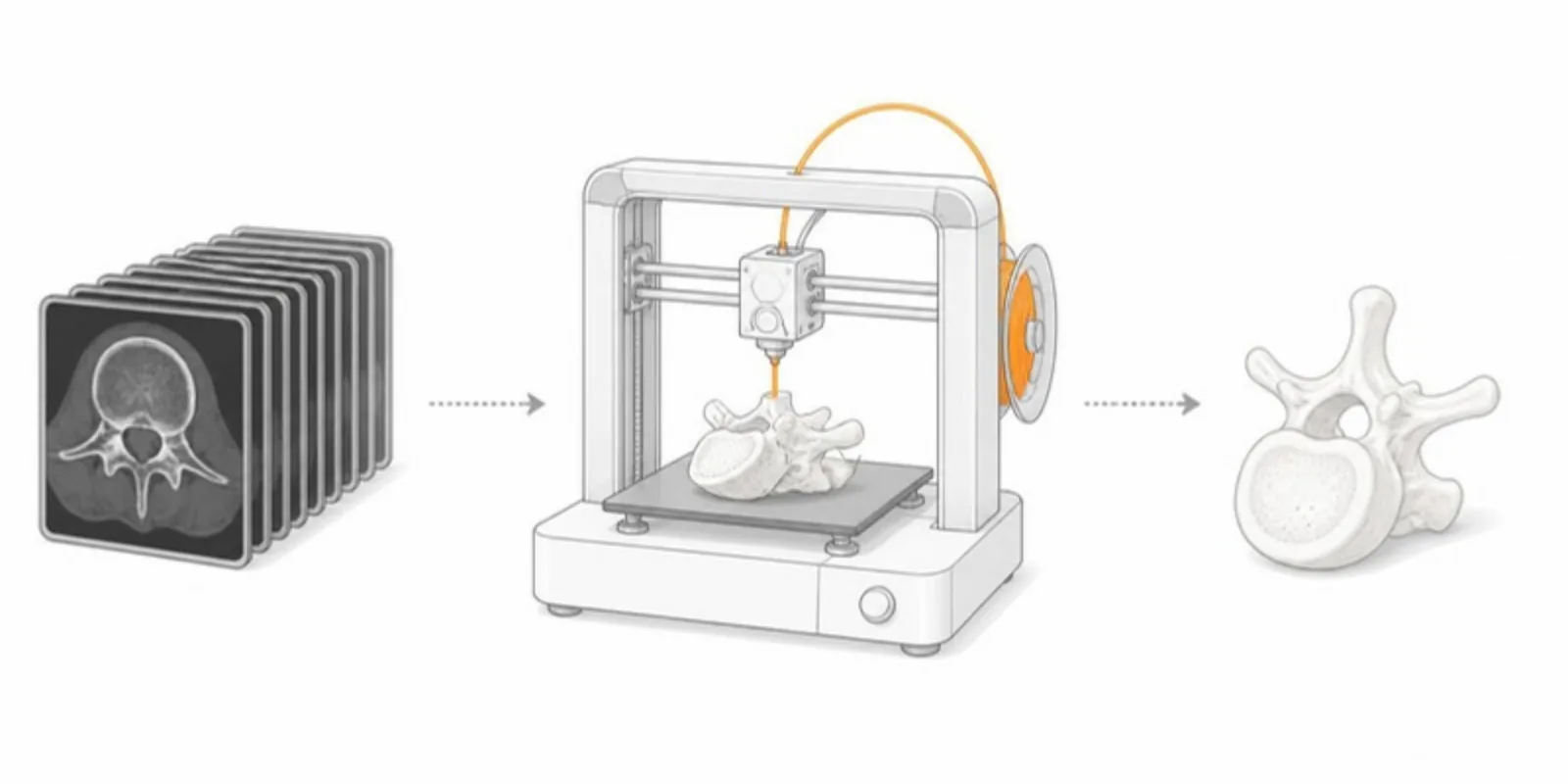
A CT scan is a stack of images; a 3D printer needs a closed surface. Getting from one to the other, DICOM to STL, takes four steps whatever software you use: prepare the data, segment the structure, turn it into a mesh, and clean that mesh for printing. This guide walks through them with free tools, and shows how to share the same model interactively with people who will never hold the print.
Step 1: Prepare and anonymize the DICOM
Export the series from your PACS or scanner as DICOM files, one folder per series. Anonymize before the data leaves the clinical environment: patient name, ID, birth date, and institution live in the DICOM headers, and some scans also have burned-in text. Use your institution’s anonymization tool, and follow its ethics and data protection rules for any research use.
Thin slices give better models. A 0.5–1 mm slice thickness is ideal for bone; 5 mm slices produce visible stair-steps.
Step 2: Segment the structure
Segmentation decides which voxels belong to the model. For bone on CT, a threshold on the Hounsfield scale does most of the work: bone sits above roughly 250 HU, soft tissue well below. Our Hounsfield units guide explains how to choose the value.
- 3D Slicer (free, open source): load the series with the DICOM module, then in Segment Editor use Threshold, then Islands to keep the largest connected piece, and Scissors to cut away the table or neighbouring bones.
- InVesalius (free, open source): built for CT, with bone presets and a direct surface export.
MRI has no absolute intensity scale, so thresholds work poorly; expect to paint or use region-growing tools instead.
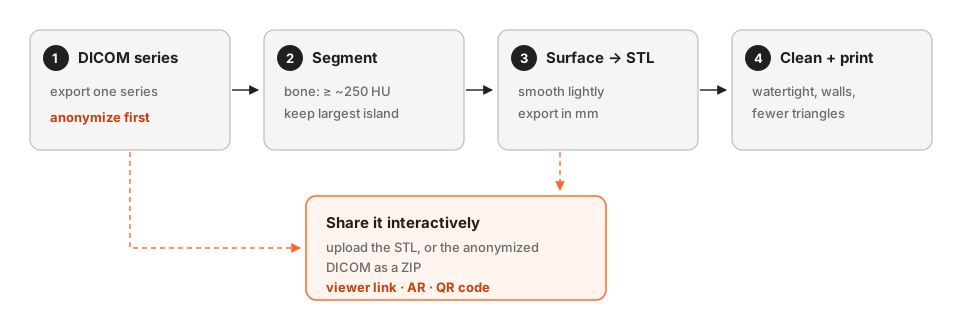 The four steps from a CT series to a printable STL, and the branch for sharing.
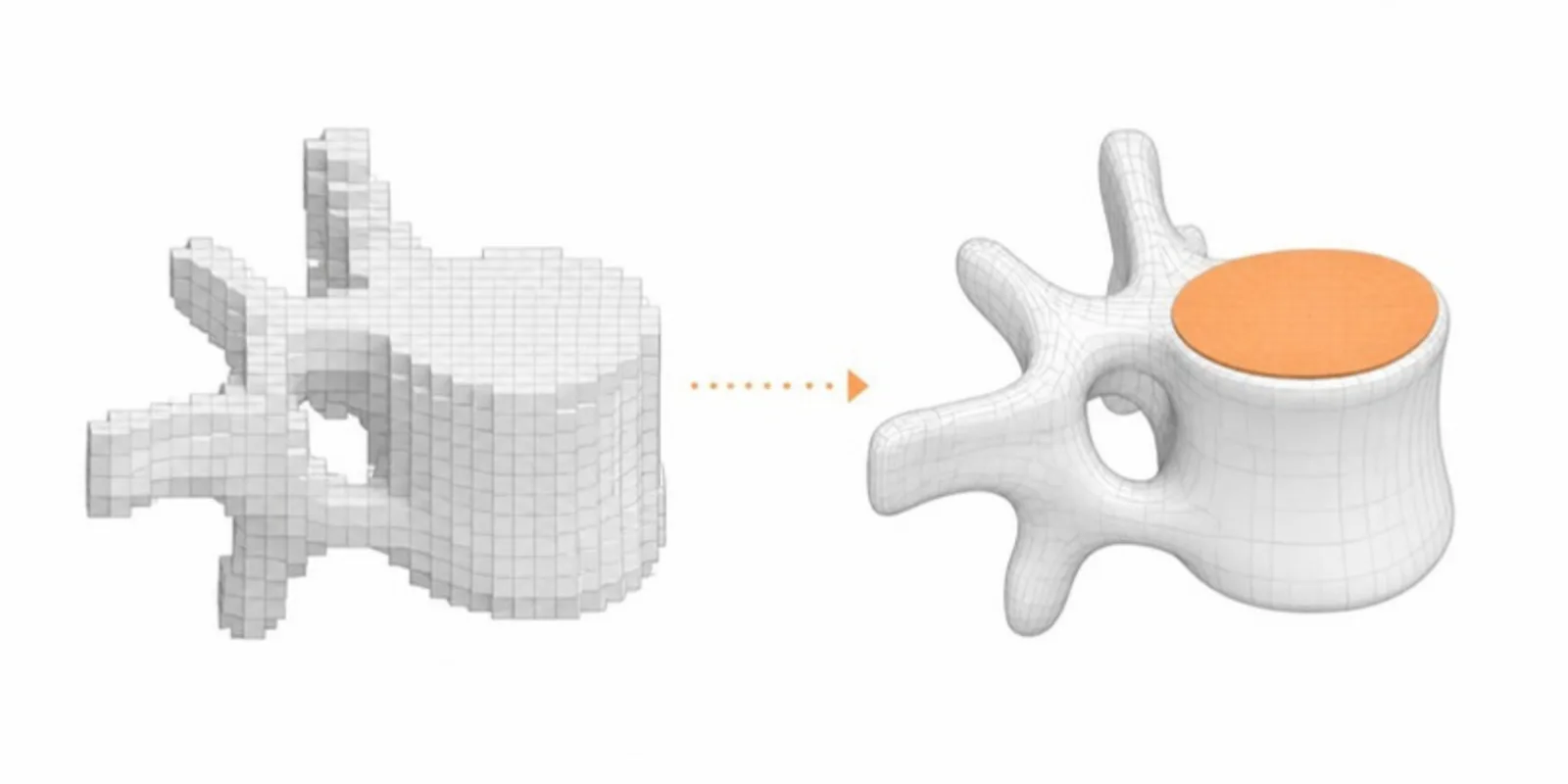
Step 3: Make the surface and export STL
In 3D Slicer, Show 3D turns the segment into a surface; apply light smoothing to remove voxel steps without erasing real anatomy. Then use Segmentations → Export to files, choose STL, and keep the coordinate system and units (millimetres) consistent with your printer software. InVesalius exports STL straight from the surface it builds.
Our 3D Slicer export guide covers the export options in more detail.
Step 4: Clean the mesh for printing
A model that looks fine on screen can still fail on a printer. Before slicing:
- Make it watertight. Holes and non-manifold edges confuse slicers. Blender’s 3D-Print Toolbox or Meshmixer can find and repair them.
- Check wall thickness. Thin cortical bone, orbital walls, and small vessels may be thinner than your printer can produce.
- Reduce the triangle count. Scans export millions of triangles; a few hundred thousand is plenty for printing at anatomical scale.
- Orient and support the model in your slicer, and print a small test piece first.
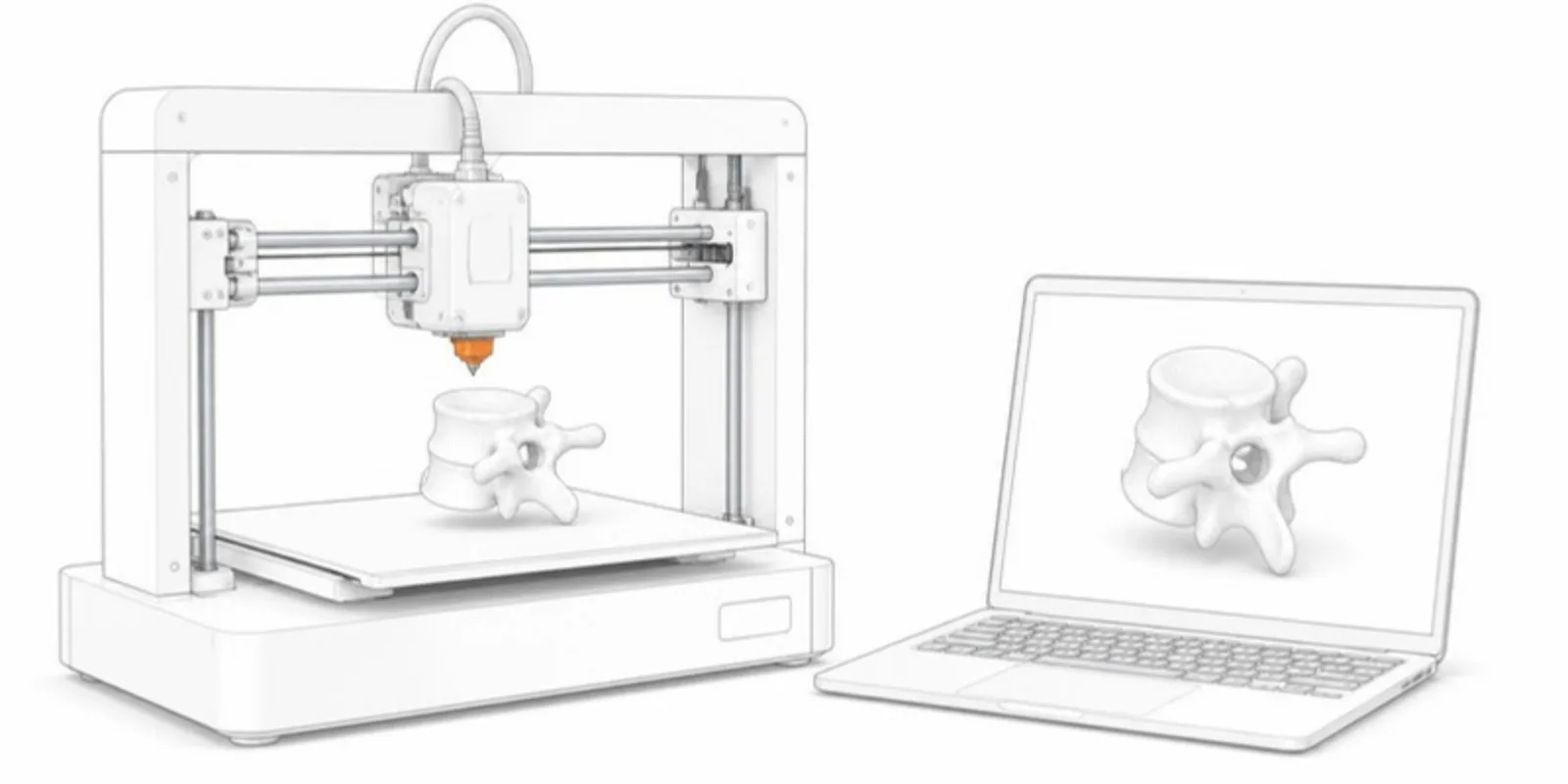
Share the model before (or instead of) printing
A print reaches the people in the room. For colleagues, students, reviewers, and patients’ care teams elsewhere, an interactive model is faster and free to copy. You can upload either file to AcademicAR:
- The STL you just made, with the unit set to millimetres.
- The anonymized DICOM series as a ZIP. AcademicAR builds the 3D model itself with Bone, Skin, Contrast, and Auto presets or a custom HU range, each as its own layer. Medical uploads need an extra confirmation that the data is anonymized, and the raw scan is deleted after conversion.
Either way you get a viewer link, AR on phones, and a QR code to put next to the printed model or in the paper. AcademicAR is for viewing and sharing; it does not produce printable STL files, so keep the STL from your segmentation software for the printer.
For the full DICOM-to-viewer workflow, see From DICOM to interactive 3D.
Frequently asked questions
What is the best free software to convert DICOM to STL?
3D Slicer and InVesalius are both free and open source. 3D Slicer is the more flexible of the two and handles CT and MRI; InVesalius is simpler and focused on CT, with presets for bone and a direct STL export.
What threshold should I use for bone?
On CT, around 250 HU and above separates bone from soft tissue in most scans. Thin or osteoporotic bone may need a lower value; check the result against the slices before exporting.
Can I 3D print directly from DICOM?
No. A printer needs a closed surface mesh such as STL or 3MF. The DICOM series has to be segmented and converted to a mesh first, then sliced for your printer.
Create a free account and share your segmented model as an interactive 3D link alongside the print.
Related guides
-
From DICOM to Interactive 3D: A Practical Guide for Researchers
How to turn a CT or MRI DICOM series into an interactive, layered 3D model with AR — what to export, how anonymization works, and what...
-
3D Slicer: Export Models and Share Them as Interactive 3D
Export segmentations from 3D Slicer as STL, OBJ, or .seg.nrrd and share them as a layered 3D viewer link with AR and a QR code, step by step.
-
How to View and Share an STL File Online (No Software Needed)
Open an STL file in your browser and share it as a link and QR code that opens in 3D and AR on any phone. No CAD or slicer software needed.