How to Reduce GLB File Size Without Losing Detail
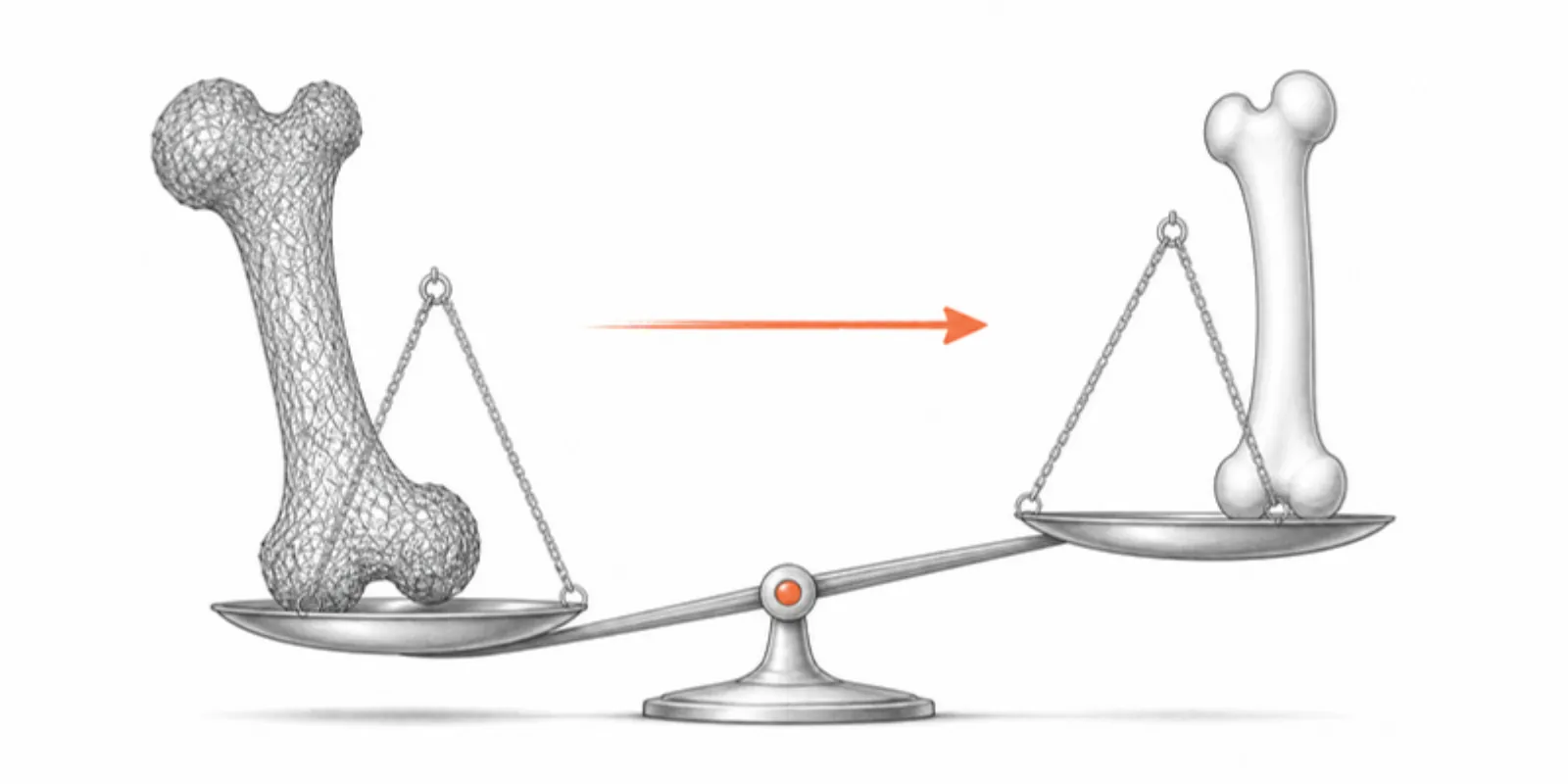
A GLB that takes a minute to load is a GLB nobody looks at. Scans, CT surfaces, and CAD exports routinely come out at 50 to 500 MB, while a phone on a conference Wi-Fi is happy with a few megabytes. The good news is that most of that weight is invisible: triangles you can’t see, raw numbers nobody compressed, and textures far bigger than any screen. Here’s how to find it and remove it.
First, find out what’s heavy
A GLB holds three kinds of data: geometry (vertices and triangles), textures (images), and a small amount of scene description. Before changing anything, look at the split. Drop the file into gltf.report in your browser, or run:
npx @gltf-transform/cli inspect model.glb
If geometry dominates, decimate and compress. If textures dominate, resize them. Most scans are both.
1. Decimate the mesh
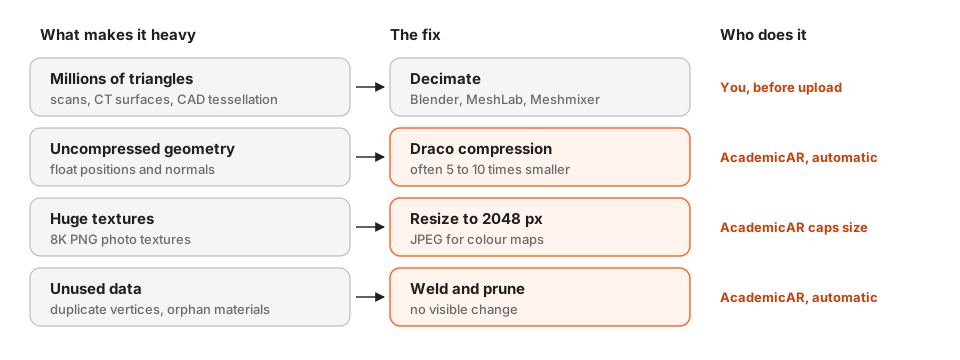
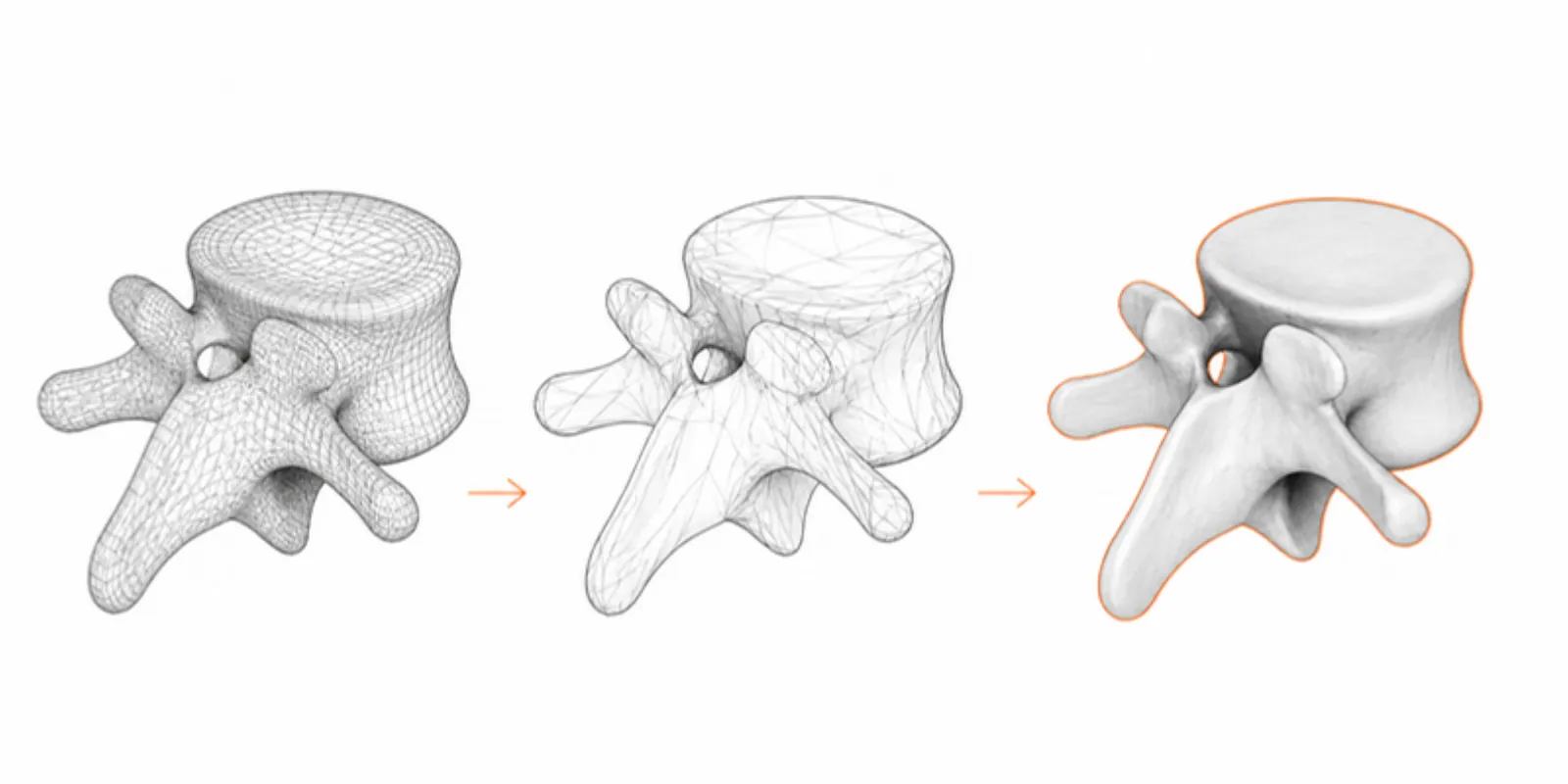
Decimation removes triangles while keeping the shape. It’s the biggest win for scans and medical surfaces, which often carry millions of triangles where a few hundred thousand look identical on screen.
- Blender: add a Decimate modifier, set Collapse with a ratio such as 0.2, watch the face count in the status bar, then apply and export glTF Binary (.glb).
- MeshLab: Filters › Remeshing, Simplification and Reconstruction › Simplification: Quadric Edge Collapse Decimation, with Preserve Boundary and Preserve Normal ticked.
Aim for 100,000 to 500,000 triangles for a single object. Check thin features (vessels, teeth, fine edges) after each step; stop when they start to break up.
2. Compress the geometry with Draco
Draco stores vertex positions and normals as compact quantized numbers instead of raw floats. Geometry often shrinks five to ten times with no visible change.
npx @gltf-transform/cli draco model.glb model-draco.glb
In Blender, tick Compression in the glTF exporter. Browsers and
<model-viewer> decode Draco without any setup, but some desktop importers
don’t, so keep an uncompressed copy for editing.
3. Shrink the textures
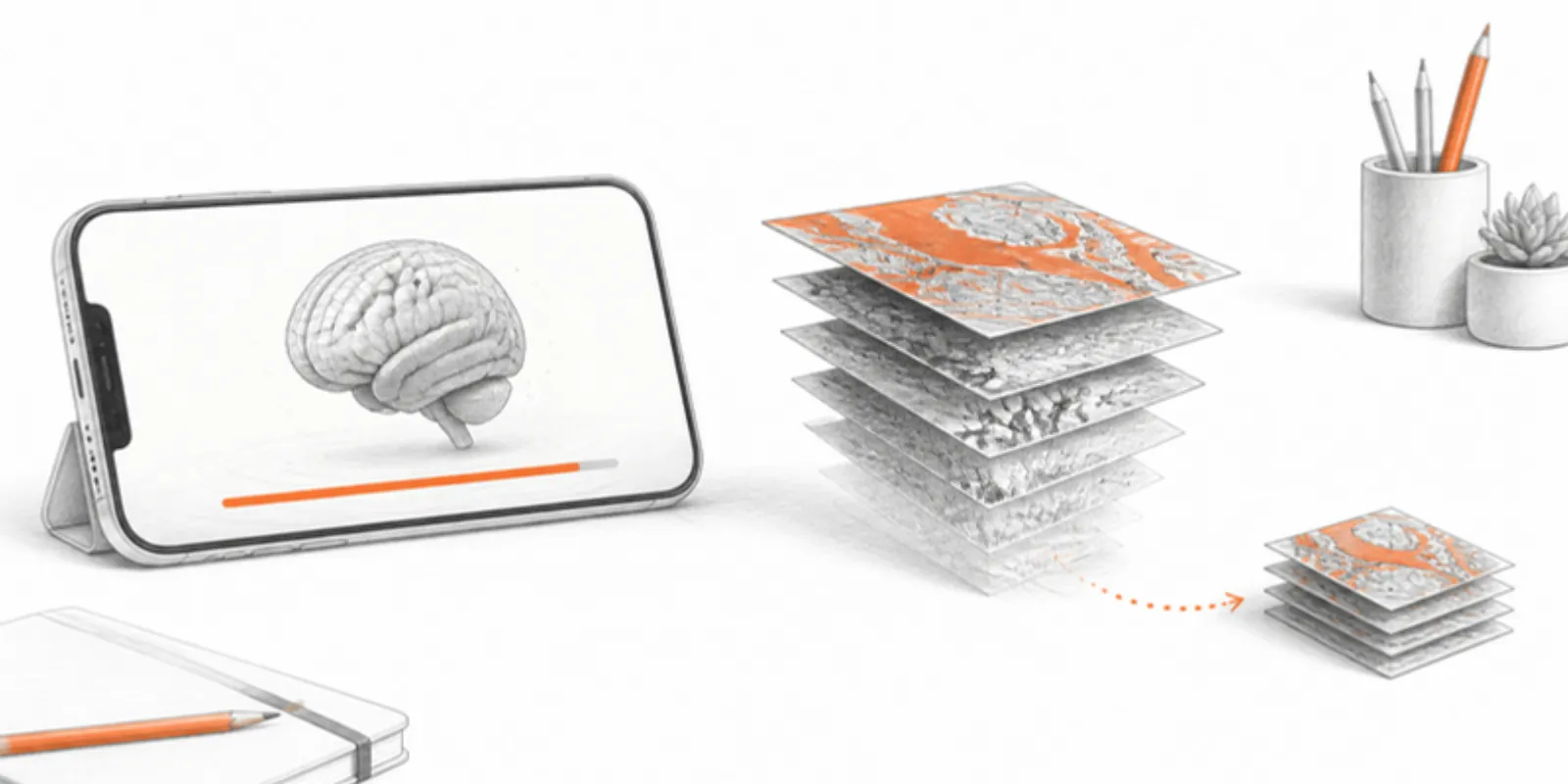
Photogrammetry exports often carry 8K PNG textures: hundreds of megabytes on their own. A phone screen never shows more than 2048 pixels of one texture.
npx @gltf-transform/cli resize in.glb out.glb --width 2048 --height 2048
Use JPEG for colour (base colour) maps and keep PNG only where you need transparency. One catch if your audience uses iPhones: AR Quick Look can’t read WebP textures, so a GLB with WebP textures converted to USDZ shows up magenta or untextured in iPhone AR. WebP is fine for browsers; for AR, stay with JPEG or PNG.
4. Clean up the rest
Exports also carry duplicate vertices, unused materials, and empty nodes.
npx @gltf-transform/cli optimize model.glb model-opt.glb --compress draco
optimize welds, deduplicates, prunes, lightly simplifies, and compresses in
one go. It also joins meshes and merges identical materials, which is what
you want for a single statue but not for a multi-part model: an assembly or a
segmentation would lose its separate, clickable parts. For those, run only
draco (step 2).
What AcademicAR does for you
When you upload a model, the converter runs this pipeline automatically, so you only need to decimate truly huge meshes first:
- Draco geometry compression on every model.
- For single-part models, welding, pruning, a very light simplification, and textures capped at 2048 px.
- For models with layers (assemblies, segmentations), Draco only, so every part stays separate in the Layers panel.
- Textures kept in formats that iPhone AR can read, and a USDZ generated from the same model.
The link and QR code stay the same if you later upload a lighter version with Replace model. Starting from STL or OBJ? See STL to GLB and OBJ and FBX to GLB.
Frequently asked questions
What is a good file size for a GLB on the web?
Under about 10 MB loads quickly on most phones and networks, and up to 20 to 30 MB is usually acceptable for a detailed model. Beyond that, decimate the mesh or shrink the textures before sharing.
Does Draco compression reduce quality?
Draco quantizes vertex positions, so in theory it is lossy, but at standard settings the difference is far below what you can see on screen. Keep the original file for editing, measurement, or 3D printing.
Why is my model magenta in iPhone AR?
Most often the textures are WebP, which AR Quick Look can’t read. Re-export with JPEG or PNG textures. AcademicAR keeps AR-compatible textures for this reason.
Can I reduce GLB size online for free?
Yes. gltf.report runs glTF-Transform in your browser, and the gltf-transform command line tool is free and open source. Uploading to AcademicAR also compresses the model automatically.
Have a heavy model? Upload it to AcademicAR and let the converter make it phone-ready.
Related guides
-
How to Convert OBJ and FBX to GLB Without Losing Textures
Convert OBJ (with its MTL and textures) and FBX to GLB for the web: what each format carries, the free tools, and how to keep materials,...
-
How to Convert STL to GLB (and Why It Matters for Sharing)
Convert STL to GLB for the web: set units and colour, keep the file small with Draco, and get a viewer link, AR, and a QR code in one step.
-
GLB to USDZ: How to Show a 3D Model in AR on iPhone
Why iPhone AR needs USDZ instead of GLB, the free ways to convert GLB to USDZ, and how to share one link that opens AR on both iPhone...