How to Add a 3D Model to PowerPoint (and Let the Audience Explore It)
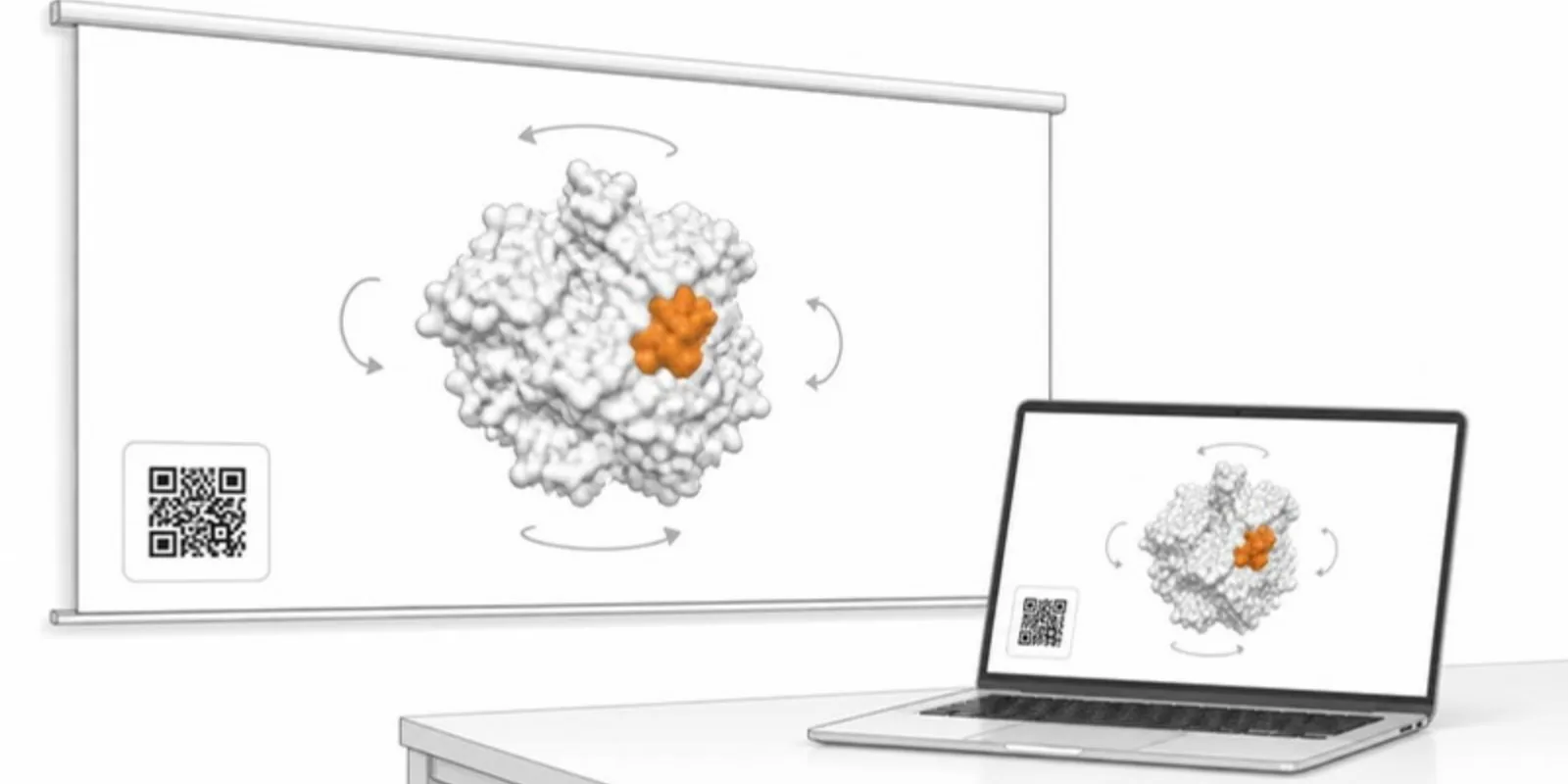
A 3D model makes a lecture or conference talk easier to follow: one rotating object explains what three static views can’t. PowerPoint gives you more than one way to bring it in, and they suit different situations. Here are the four routes, what each is good at, and when to combine them.
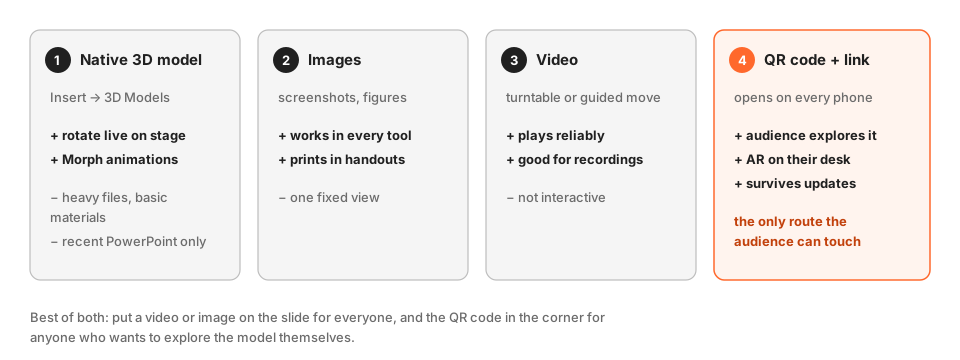 Native 3D, images, video, or a live link: what each route keeps.
1. Insert the model natively
PowerPoint for Microsoft 365 (Windows and Mac) can insert 3D files directly: Insert → 3D Models → This Device. It accepts common formats including GLB, FBX, OBJ, STL, PLY, and 3MF. You can rotate the model on the slide, use the Morph transition to animate between two orientations, and add 3D animations such as a turntable.
Good for: a single, light model you want to turn live on stage. Watch out for: file size (dense scans make the deck slow and huge), limited material quality, no layers or sections, and older PowerPoint versions or other presentation tools that won’t show it.
2. Use rendered images
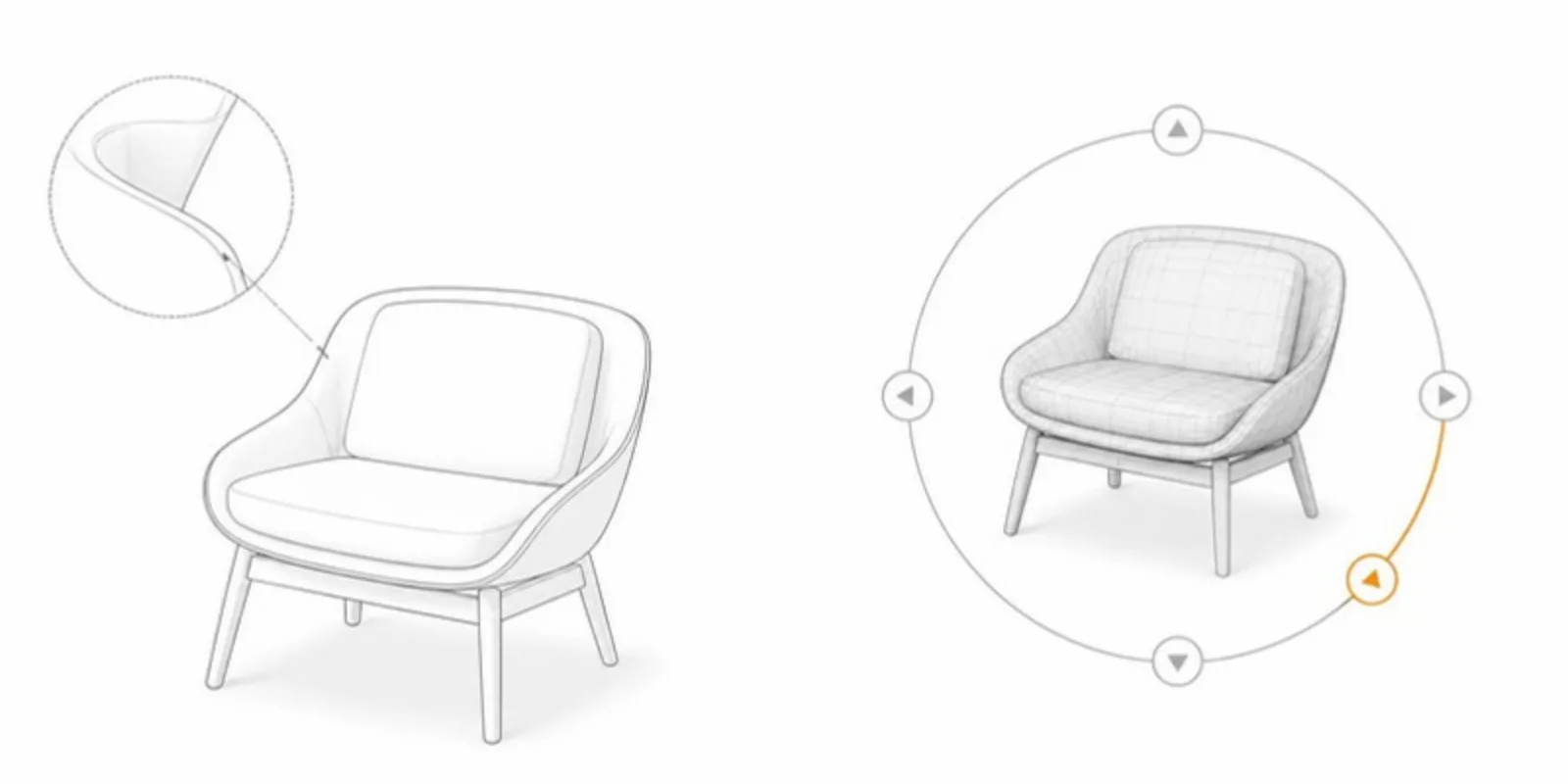
A still is the most robust option: it works in every version of PowerPoint, Keynote, Google Slides, and the PDF handout. From the AcademicAR viewer you can take screenshots of the current view, or, on paid plans, export a publication figure with a scale bar, labels, and a QR card in one image.
Good for: handouts, posters made from slides, and anything printed.
3. Insert a short video
A turntable or a guided move through a model is often clearer than live rotation, and it plays reliably. Record the view from the viewer’s video recording tool (it records MP4 in browsers that support it, which PowerPoint and Keynote play), then Insert → Video. The owner’s browser also generates short showcase videos of a model automatically, saved with the project’s media.
Good for: talks where you can’t risk live interaction, and recorded lectures.
4. Put a QR code and link on the slide
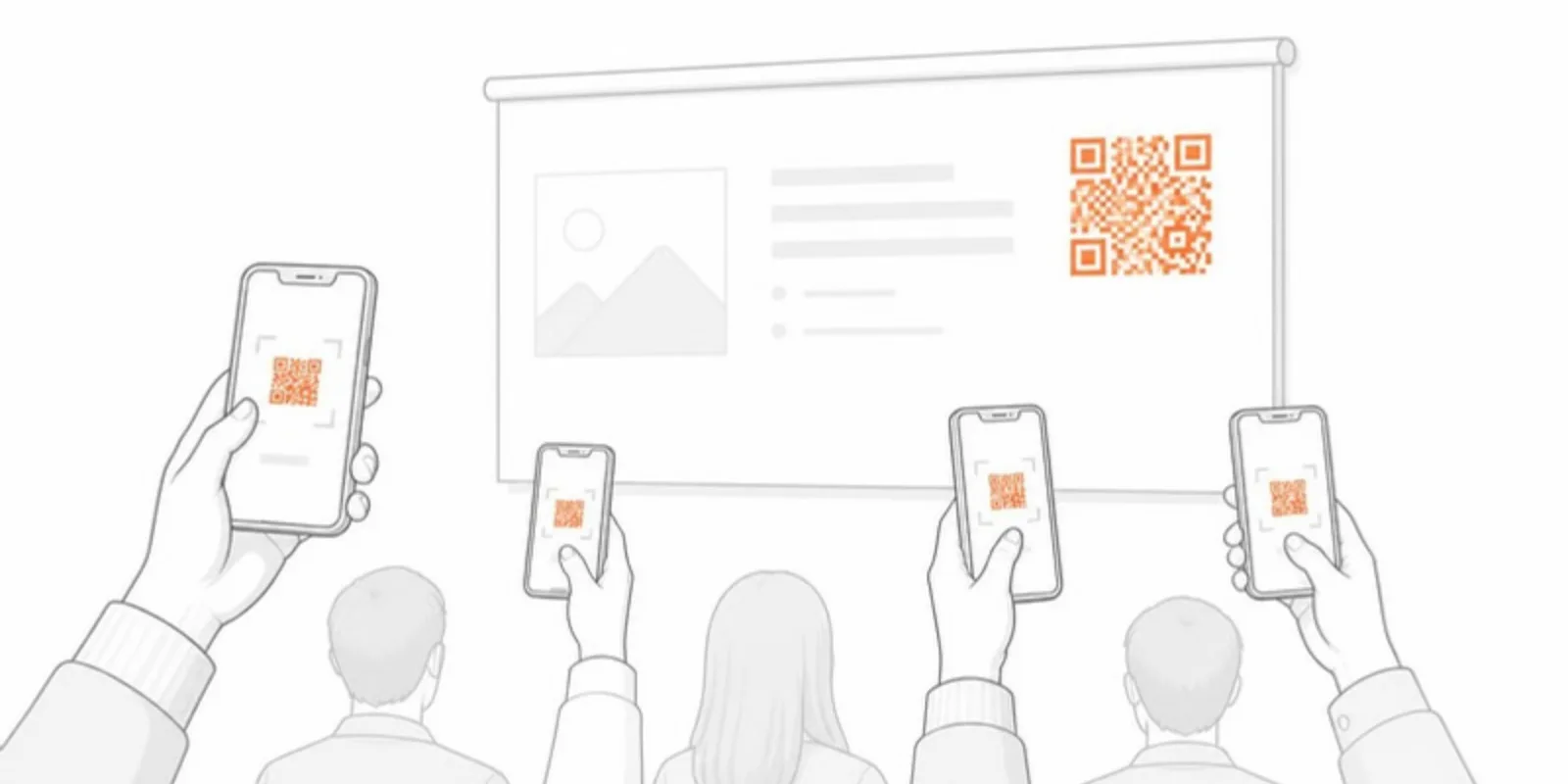
This is the only route that lets the audience explore the model: they scan the QR code, the model opens in their phone’s browser, and one tap places it on their desk in AR. Every AcademicAR model has a stable viewer link and QR code, so the slide keeps working after you update the model, and you can see how many people scanned it.
Good for: teaching, conference talks, and any slide where you want people to look at the model themselves. Make the QR at least a fifth of the slide height so it scans from the back of the room.
Combine them
The strongest decks use two routes: a video or image on the slide for everyone, and a QR code in the corner for anyone who wants to explore. For teaching, save scenes (fixed views with labels and visible layers) and play them as a guided tour from the viewer instead of a slide sequence. You can also attach the deck itself to the project, so students find the slides and the model on one page.
To put the same model on a course page or lab website, see how to embed a 3D model.
Frequently asked questions
Which 3D formats can PowerPoint insert?
PowerPoint for Microsoft 365 inserts GLB, FBX, OBJ, STL, PLY, and 3MF files via Insert, 3D Models. Very large or highly detailed files are best simplified first.
Can the audience interact with a 3D model in a PowerPoint slide?
Only the presenter can rotate a model inserted into the slide. To let the audience explore it themselves, add a QR code that opens the model in their phone’s browser and in AR.
Will a 3D model in PowerPoint work in Google Slides or Keynote?
Native PowerPoint 3D models don’t carry over to other tools. Images, MP4 video, and a QR code with a link work everywhere.
Create a free account, upload a model, and put its QR code on your next slide.
Related guides
-
How to Embed a 3D Model on a Website, LMS, or Lab Page
Two ways to embed an interactive 3D model on a web page: self-host with model-viewer, or paste a hosted viewer iframe into WordPress,...
-
DICOM to STL: How to Turn a CT Scan into a 3D Printable Model
Convert DICOM CT or MRI to STL for 3D printing with free tools: anonymize, segment by Hounsfield threshold, clean the mesh, export, and...
-
GLB to USDZ: How to Show a 3D Model in AR on iPhone
Why iPhone AR needs USDZ instead of GLB, the free ways to convert GLB to USDZ, and how to share one link that opens AR on both iPhone...