AR for STEM Education
Interactive 3D & AR for STEM teaching
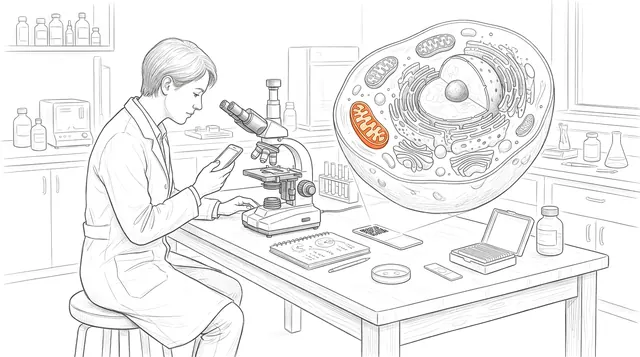
Drop a QR code on a worksheet and a static diagram becomes something every student can rotate, zoom, and stand next to — on the device already in their hand.
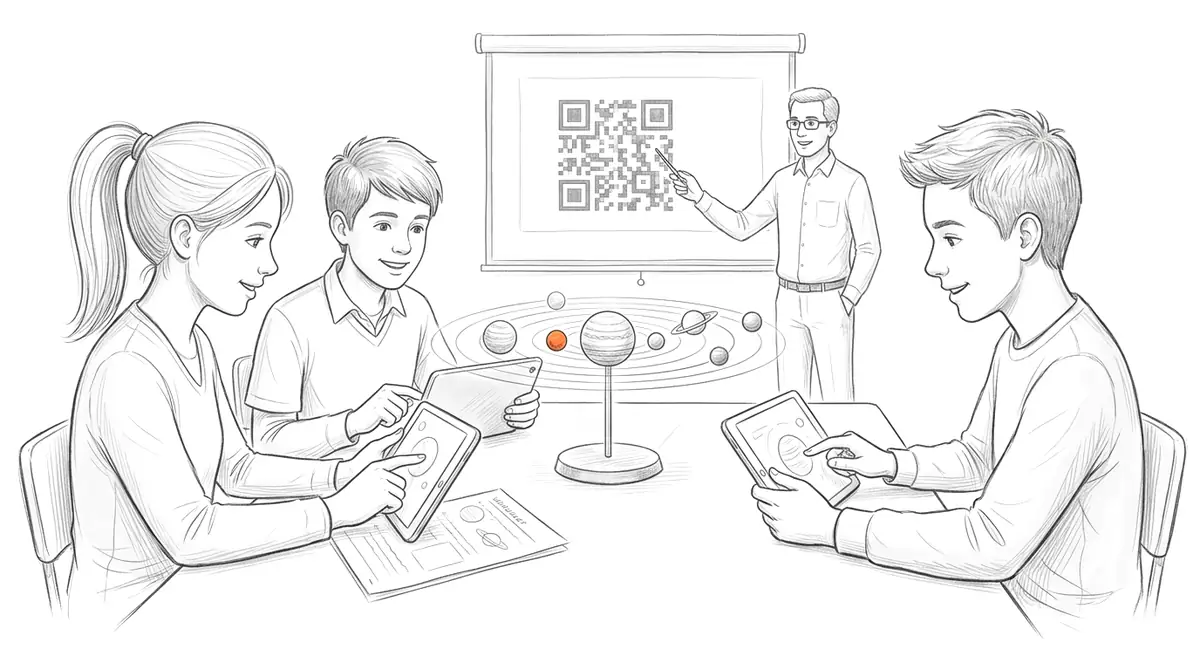
Across science, technology, engineering, and maths, the hardest ideas are usually the spatial ones — and they're the ones flat diagrams serve worst. AcademicAR lets a teacher publish any 3D model as an interactive viewer with augmented reality, so students rotate it, zoom in, and place it in the room, turning a slide into something they can explore on their own device.
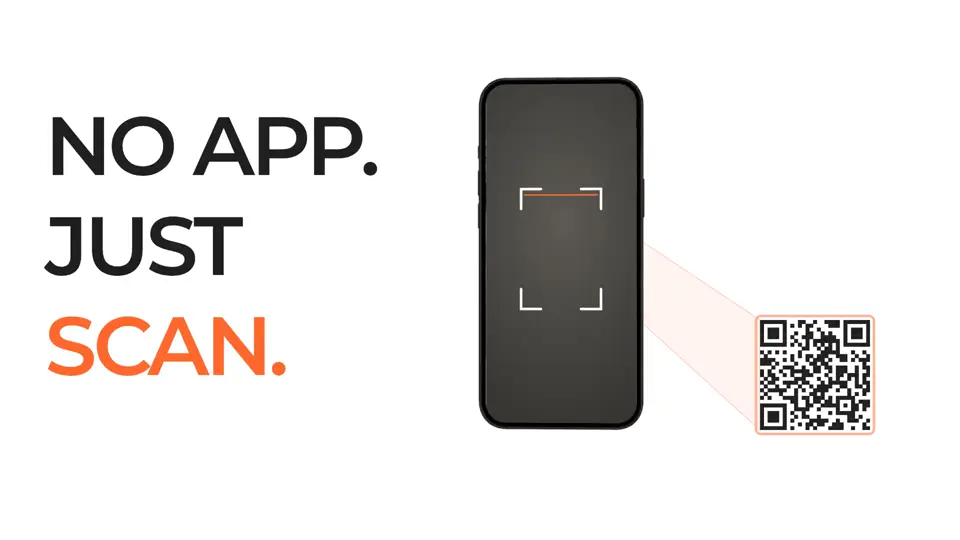
It works on the phones and tablets students already carry: no headset, no install, and a QR code or link you can paste into a slide, worksheet, or learning-management system.
Why stem education needs interactive 3D
Spatial reasoning needs spatial tools.
Letting students turn a model themselves builds intuition that a fixed diagram can't.
Hardware-free AR.
It runs on the devices a class already has, so AR reaches every student without a lab budget or headsets.
Reusable across lessons.
Build a small library of models once and a QR code drops the right one into any future slide or worksheet.
Viewer tools stem education teams reach for
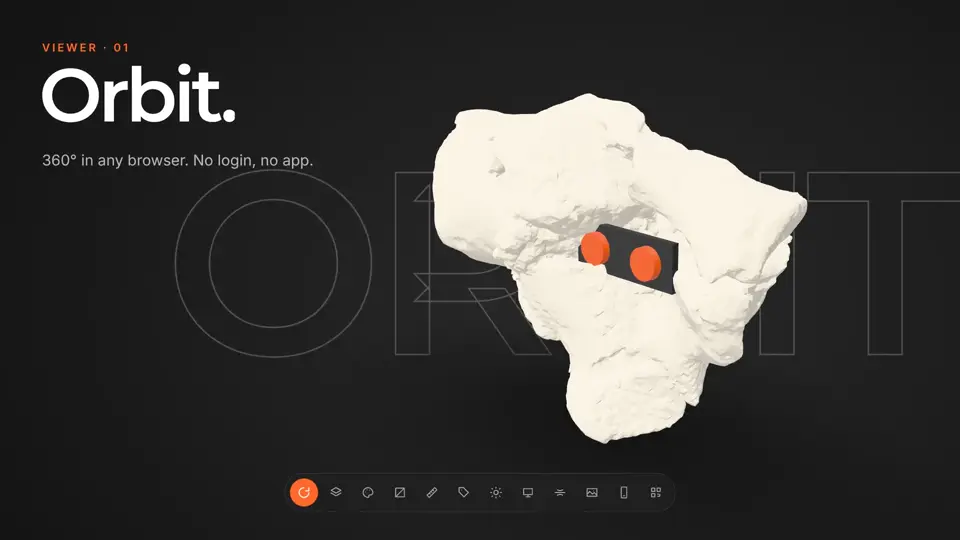
Every published model opens in the same viewer. These are the tools that matter most for stem education work.
How it works
-
Step 1
Upload your model
Drop in a GLB, STL, OBJ, FBX or STEP file, or a CT/MR segmentation. It's converted and optimized for the web automatically.
-
Step 2
Get a viewer & QR code
You get an interactive 3D viewer with tap-to-place AR, a short link, and a stable QR code.
-
Step 3
Share anywhere
Place the QR code on a slide, poster, handout, label, or paper. Your audience needs no app and no headset.
Ways stem education teams use it
Slides & worksheets
A QR code opens the exact model you're teaching so students explore it during or after the lesson.
Stations & flipped learning
Set up self-paced stations where students rotate and place a model and answer prompts about it.
Student projects
Have students publish their own 3D work and share it with a QR code for presentations and assessment.
Guides for stem education
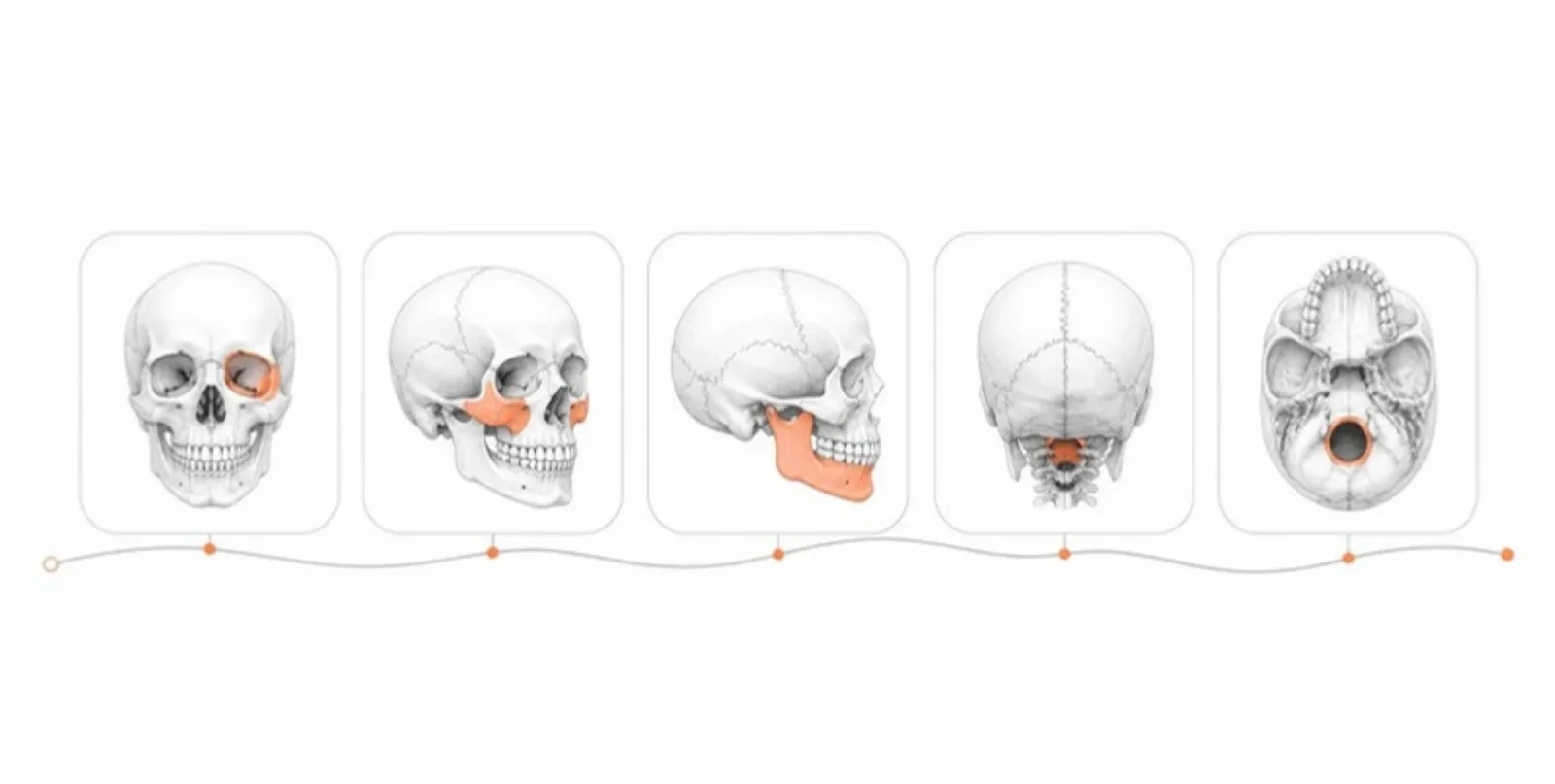 Saved Scenes and Guided Tours: Teaching with 3D Models Step by Step
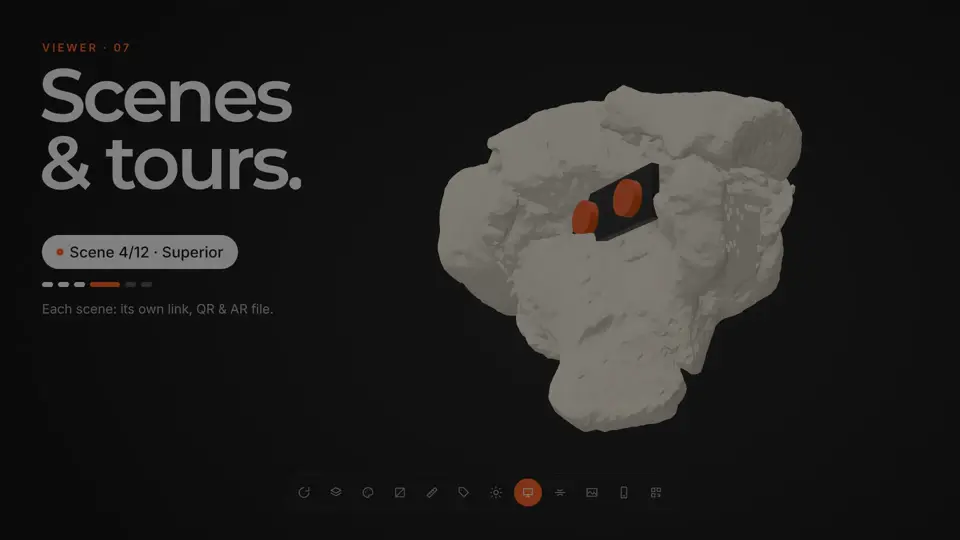
Save up to 12 views of a 3D model — each with camera, layers, colours, and section cut — share each with its own link and QR code, and play them as a guided tour in class or in AR.
Saved Scenes and Guided Tours: Teaching with 3D Models Step by Step
Save up to 12 views of a 3D model — each with camera, layers, colours, and section cut — share each with its own link and QR code, and play them as a guided tour in class or in AR.
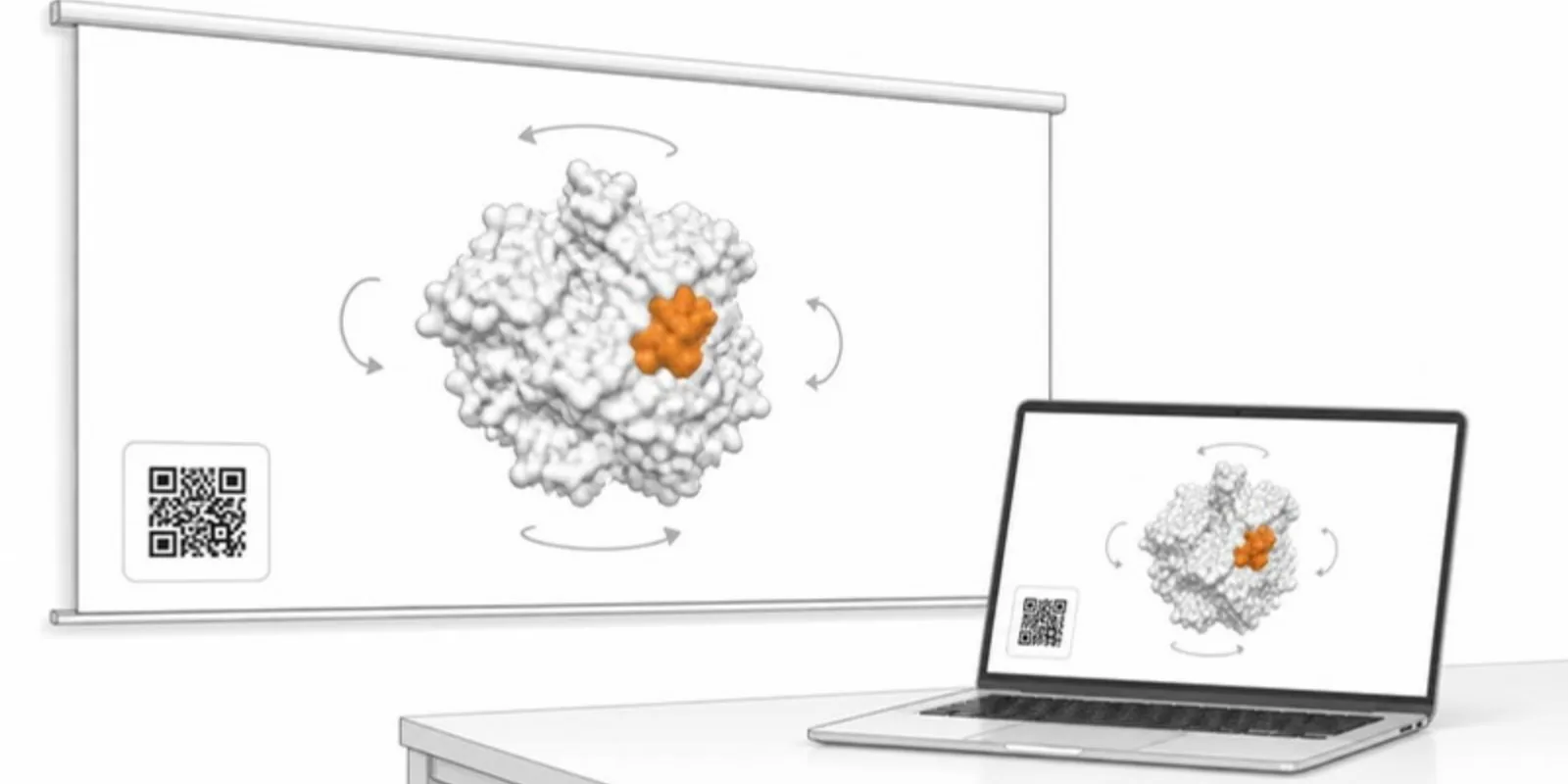 How to Add a 3D Model to PowerPoint (and Let the Audience Explore It)
Four ways to put a 3D model in a PowerPoint presentation: native 3D models, rendered images, video, and a QR code that opens the model in 3D and AR on every phone.
How to Add a 3D Model to PowerPoint (and Let the Audience Explore It)
Four ways to put a 3D model in a PowerPoint presentation: native 3D models, rendered images, video, and a QR code that opens the model in 3D and AR on every phone.
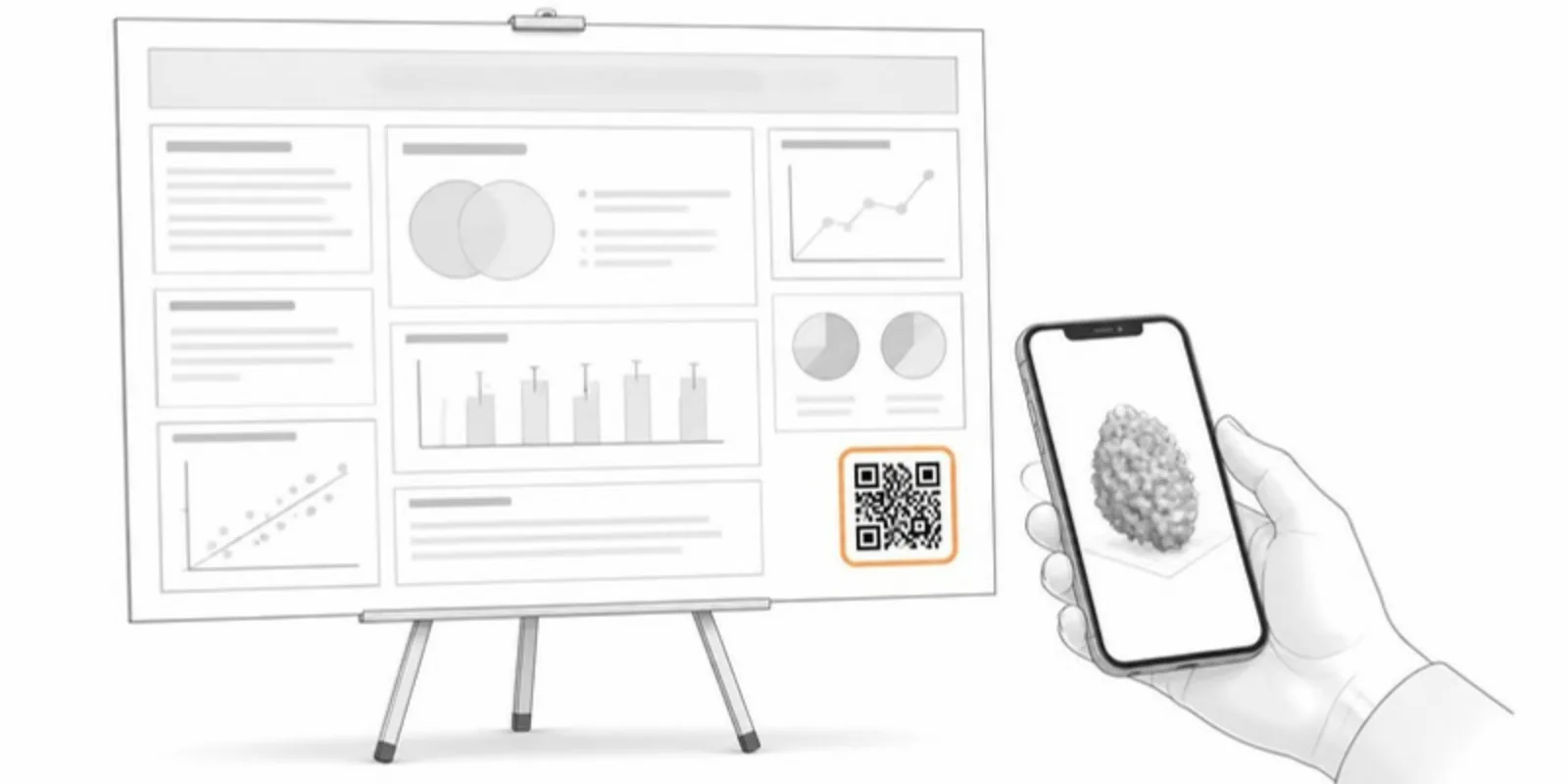 The Complete Guide to QR Codes on Academic Posters
Best practices for putting QR codes on conference posters: what to link, where to place them, sizing, and how to turn a static poster into an interactive demo.
The Complete Guide to QR Codes on Academic Posters
Best practices for putting QR codes on conference posters: what to link, where to place them, sizing, and how to turn a static poster into an interactive demo.
STEM Education FAQ
What devices do students need?
Any modern phone, tablet, or computer with a browser. Tap-to-place AR works on most recent phones and tablets with no app to install.
Where do I get 3D models to use?
Upload models you or your students create, or models you have the rights to use, in GLB, STL, OBJ, or FBX. AcademicAR converts and optimizes them for the web.
Can I share a model in my LMS?
Yes — paste the model's link into Canvas, Moodle, Google Classroom, or any platform, or share the QR code.
Is there a free way to try it?
Yes. You can create a free account and publish a model to see the full viewer, AR, and QR workflow.
Do students need accounts to view?
No. Anyone with the link or QR code can view and place a model; only the teacher or student publishing it needs an account.
Explore other fields
All use cases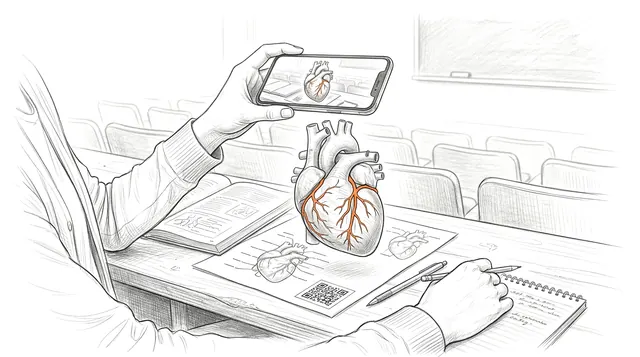

Publish your first stem education model
Create a free account, upload a model, and share an interactive 3D & AR figure in minutes.