How to Run a 3D Demo in a Conference Talk or Thesis Defence
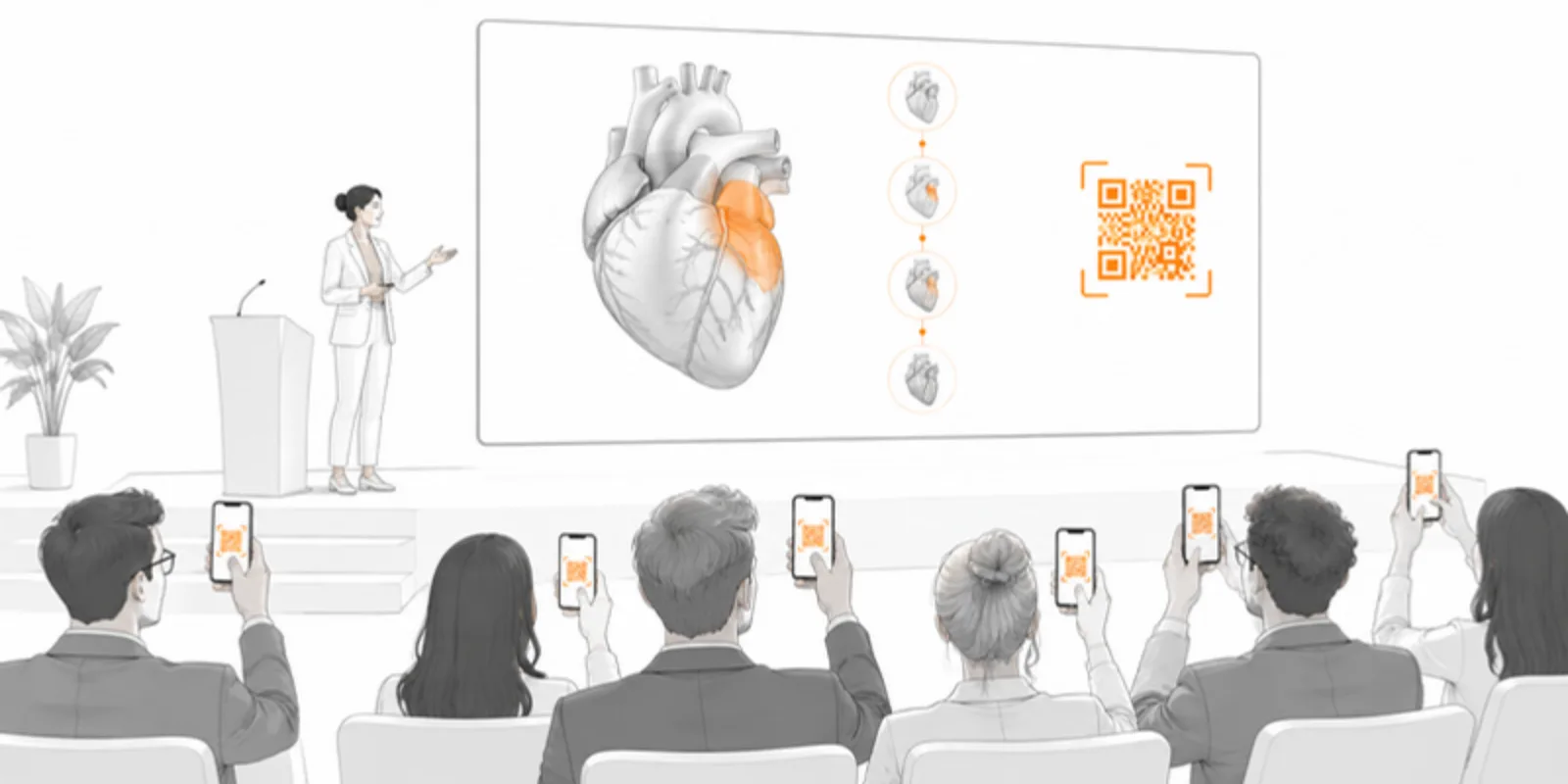
A 3D model in a talk is the moment the room wakes up. It is also the moment presentations fail: the file will not open, the network drops, the presenter fumbles with a mouse and loses the room. A demo that works is a planned demo. This guide covers the setup, from saving the views to what to do when the projector shows nothing.
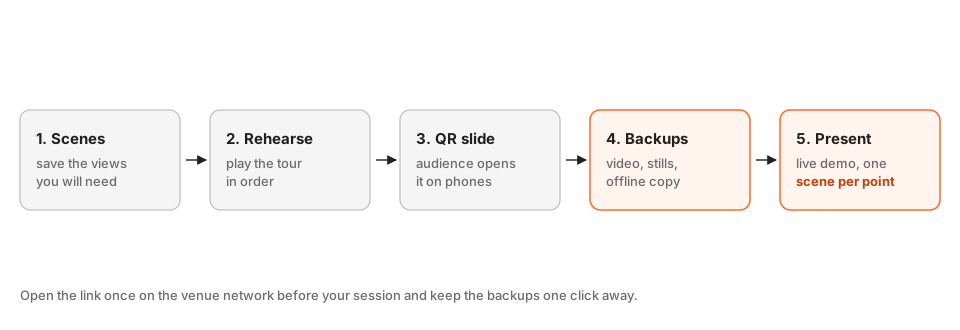
1. Save the views you will need
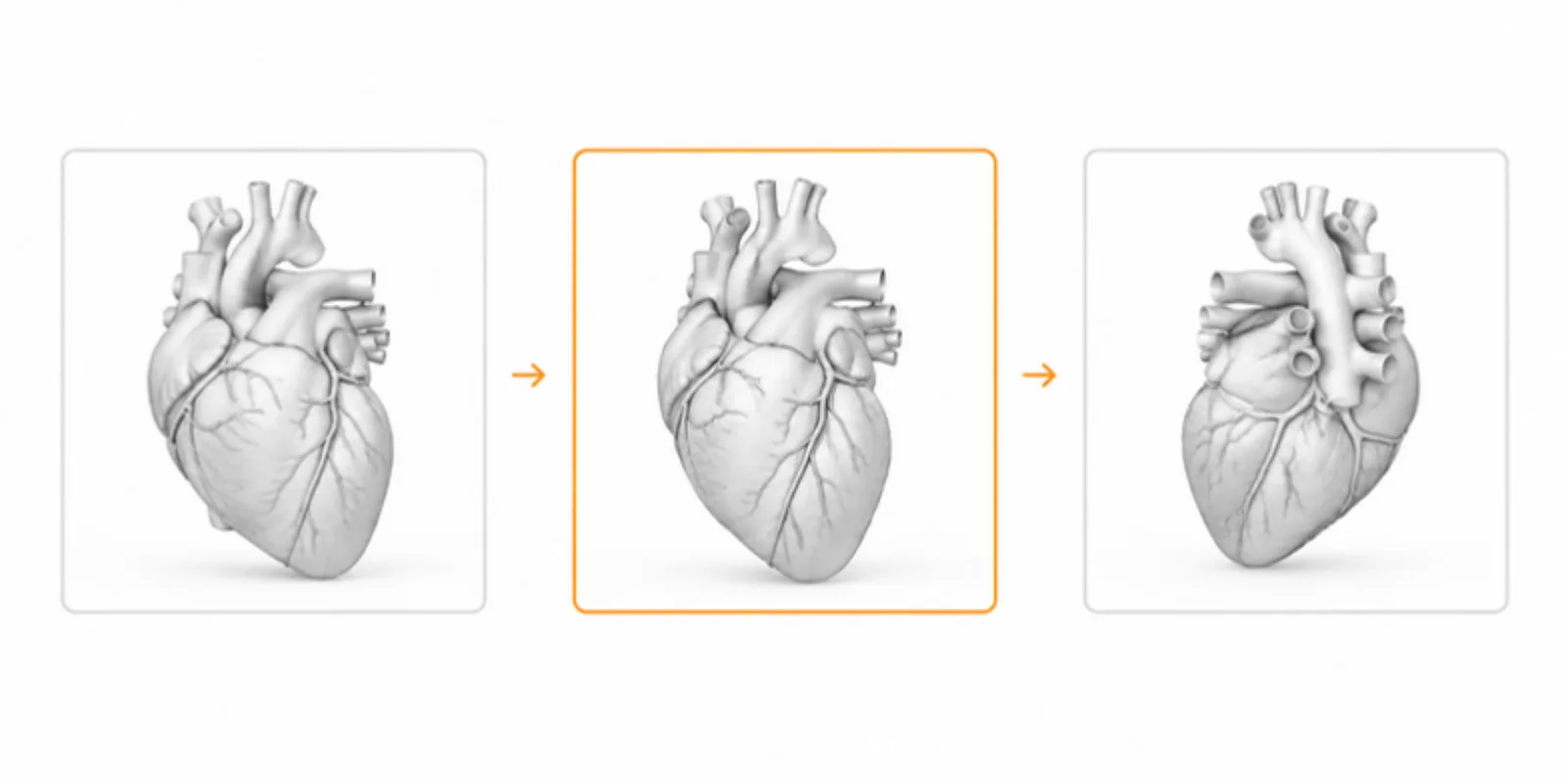
Do not rotate a model live in front of an audience if you can avoid it. Open the model, set up each view you plan to show, and save it as a scene: the camera angle, the visible layers and any section cut. You can save up to 12 per model. A demo of a heart might have Whole organ, Remove the atria, Section through the ventricles, Valve detail. The mechanism is explained in saved scenes and guided tours.
2. Rehearse the tour
Play the scenes in order and time yourself. One scene per point is a good rule: you say a sentence, you move to the next scene, the audience sees what you are talking about. Rehearse on the machine and the browser you will use, and practise the way back to the first scene, since questions often send you backwards.
3. Put a QR code on a slide
Add a slide with the QR code and the text link, at least a few centimetres wide on a standard slide, with a plain background around it. Tell the audience when to scan: “Scan this now and rotate the bone yourselves.” Hands in the air with phones is the best signal that your 3D works. If you use PowerPoint, see adding a 3D model to PowerPoint for the options, from a linked slide to an embedded view.
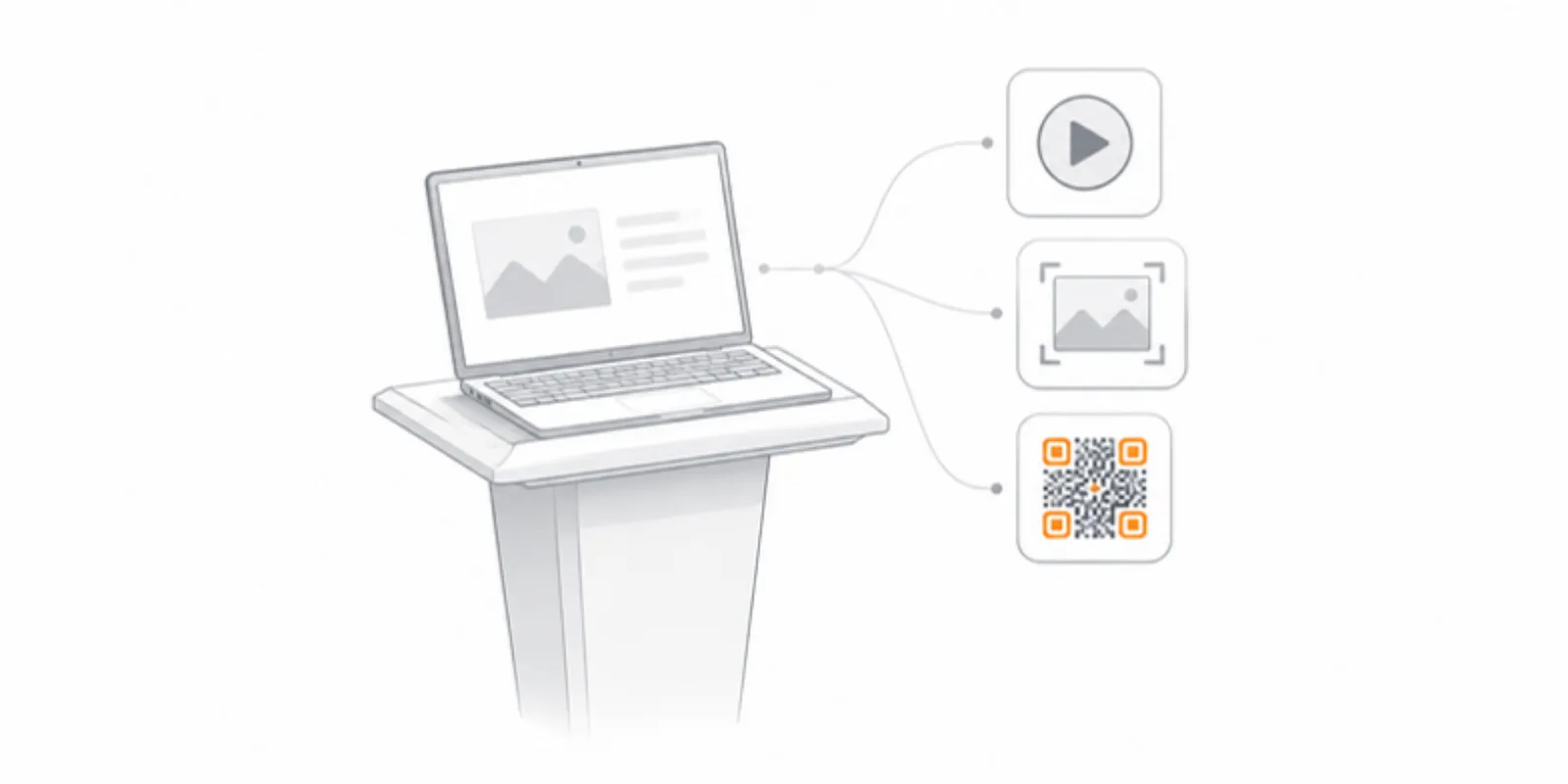
4. Prepare three backups
Networks fail at conferences. Prepare, in this order:
- A screen recording of the tour (a minute or two), embedded in the deck.
- Screenshots of each scene as normal slides.
- An offline copy of the model on the laptop, or the viewer link opened in a tab ahead of time, loaded and ready.
Then the worst case is a static slide, and the audience never notices a failure. If you also need the model on a printed poster, see QR codes on academic posters.
5. Test at the venue
Open the link once on the venue network and on the venue machine, in the room if you can. Check the sound, the screen resolution and whether the browser allows the page. If you present from your own laptop, check that the adapter and the display mode are working before the session, not during.
6. Present
Keep the demo short, one to three scenes per slide, and talk over it rather than about it. Come back to the slides at once when you have made your point. At a thesis defence, the committee will ask to see a particular angle: use the model’s own rotation for questions, and keep the saved scenes for the planned story. Use the same link you put in the thesis, see putting 3D models in your thesis.
7. Leave the link behind
Put the link or QR code on your last slide, and in your abstract or your handout, so the audience can open the model later. For a project page with the full demo, you can also embed the model in a website.
Frequently asked questions
How many scenes should a talk demo use?
Three to six is plenty for a ten-minute talk. Each scene should make one point, and the tour should end on a view you can talk about while taking questions.
What if the internet fails during my talk?
Use the backups: a screen recording in the deck, screenshots of each scene, and a page opened and loaded before the talk. Never make the talk depend on a live network.
Can the audience open the model on their own phones?
Yes. A QR code on a slide opens the model in the phone’s browser with no app, and AR starts from a button on the page when the phone supports it.
Should I use the same link in the thesis and in the defence?
Yes. One link is easier to remember, and the audience can find it in the thesis afterwards. Replacing the model keeps the link, so you can update it without changing the slides.
Create a free account and build a demo that holds up on stage.
Related guides
-
How to View a 3D Model in AR Without an App (iPhone and Android)
Open a 3D model in augmented reality from a link or QR code with nothing to install: how AR Quick Look and Scene Viewer work, which...
-
How to Add a 3D Model to PowerPoint (and Let the Audience Explore It)
Four ways to put a 3D model in a PowerPoint presentation: native 3D models, rendered images, video, and a QR code that opens the model...
-
How to Embed a 3D Model on a Website, LMS, or Lab Page
Two ways to embed an interactive 3D model on a web page: self-host with model-viewer, or paste a hosted viewer iframe into WordPress,...