How to View a 3D Model in AR Without an App (iPhone and Android)
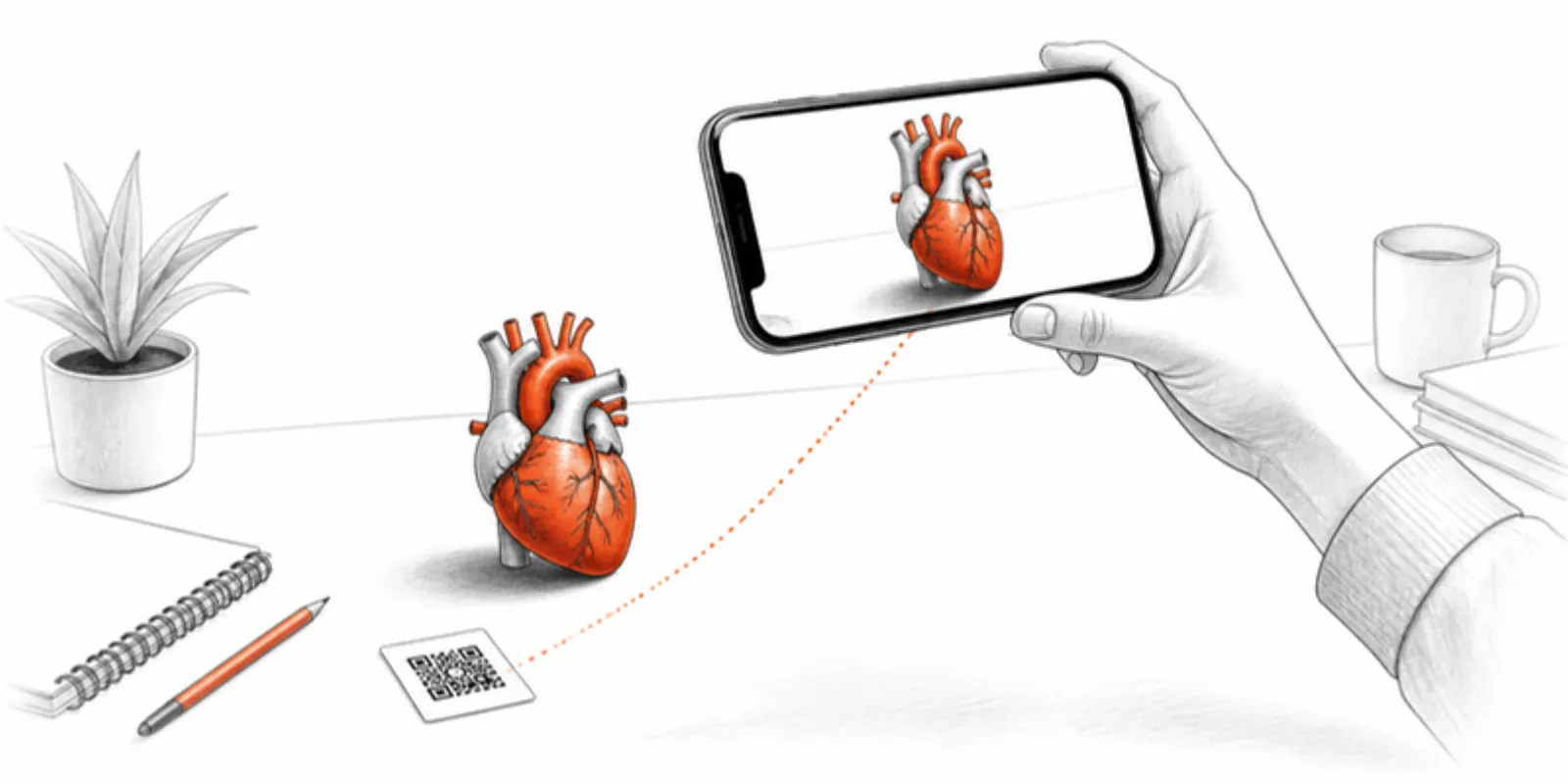
Ask a room of people to install an app before they can see your model and most of them won’t. The good news is that they don’t have to. Both iPhone and Android ship with an augmented reality viewer built into the operating system, and a web page can hand a 3D model straight to it. Your audience scans a QR code or taps a link, then taps View in AR, and the model is standing on their desk.
How web AR works without an app
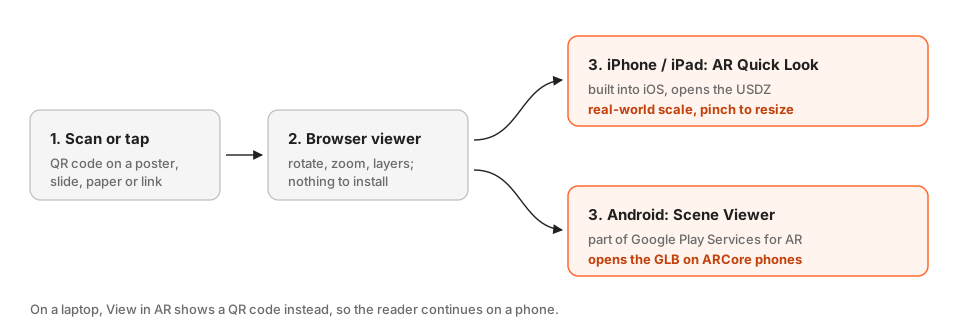
There are two system viewers, and each wants its own file format:
- iPhone and iPad: AR Quick Look. Built into iOS. It opens a USDZ file from Safari (and Chrome on iOS) and places the model at real-world scale.
- Android: Scene Viewer. Part of Google Play Services for AR, which most recent Android phones install and update automatically. It opens a GLB file on any ARCore-supported phone.
A web viewer such as <model-viewer> shows the model in 3D in any browser and
picks the right AR route for the device. Nothing else is installed, and the
reader never leaves the page for an app store.
The catch is the files. You need a GLB and a USDZ of the same model, both light enough for a phone, at the right scale, behind one stable link. Making a USDZ by hand is where most people stop; our GLB to USDZ guide explains why.
Step by step with AcademicAR
- Upload the model. GLB, STL, OBJ (with its MTL and textures), FBX, STEP/STP, a DICOM series as a ZIP, or a segmentation. It’s converted in the background to an optimized GLB, and a USDZ is generated for iPhone and iPad.
- Check the size. On the model’s page, set the real-world longest dimension if the file has no units, so a 4 cm vertebra doesn’t arrive in AR the size of a car.
- Copy the link or download the QR code. Every model gets a viewer link and a QR code that keep working if you later replace the file or recolour it.
- Scan and tap View in AR. On a phone the model opens in the browser viewer; the AR button hands it to Quick Look or Scene Viewer. On a laptop the same button shows a QR code so the reader can continue on their phone.
Where no-app AR works best
- Conference posters. A QR code next to a figure turns a static panel into a model visitors can walk around. See our poster QR code guide for size and placement.
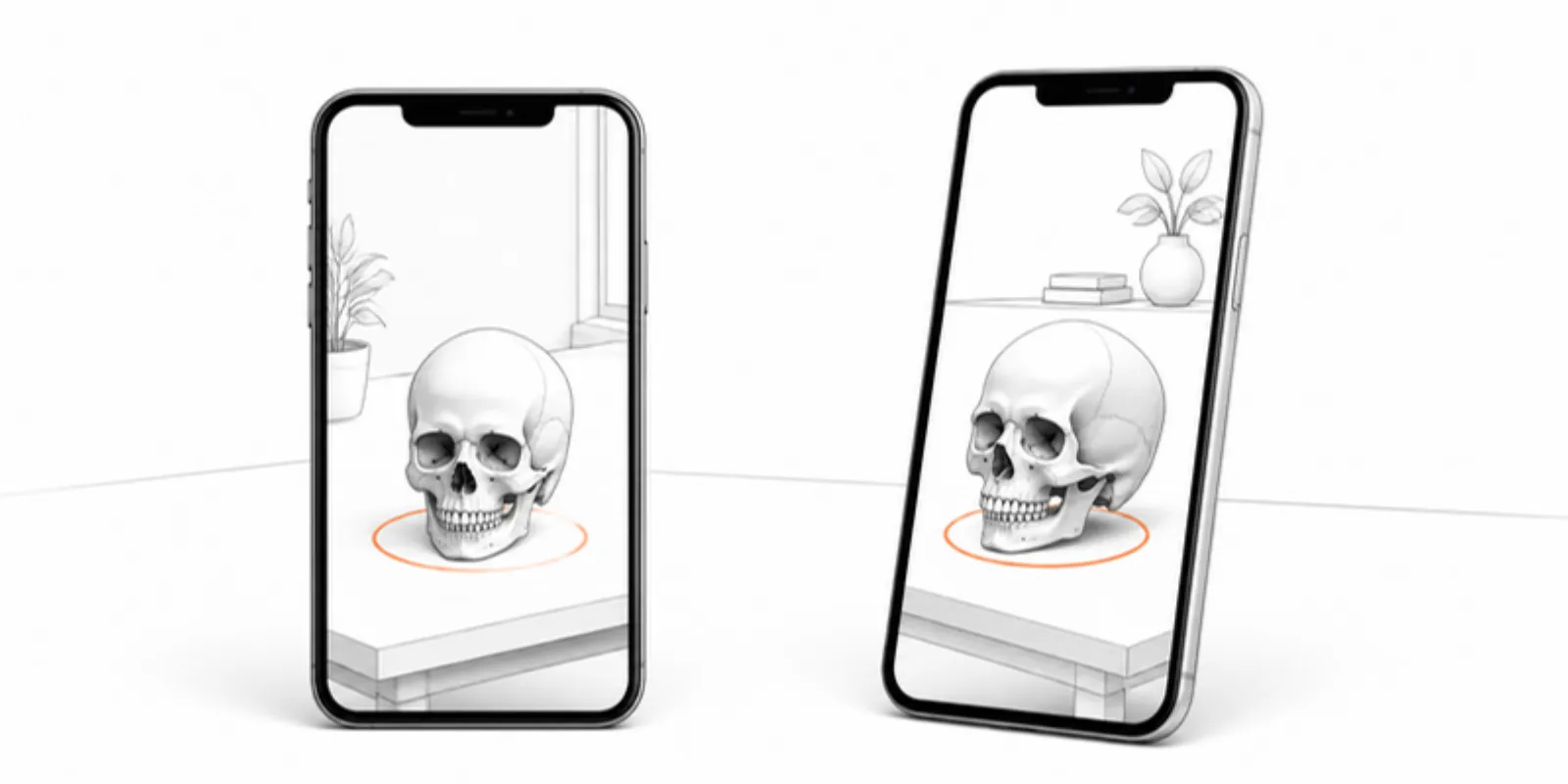
- Teaching. Students place a skull, heart, or pelvis on their own desk and look at it from every side; our anatomy AR guide has lesson ideas.
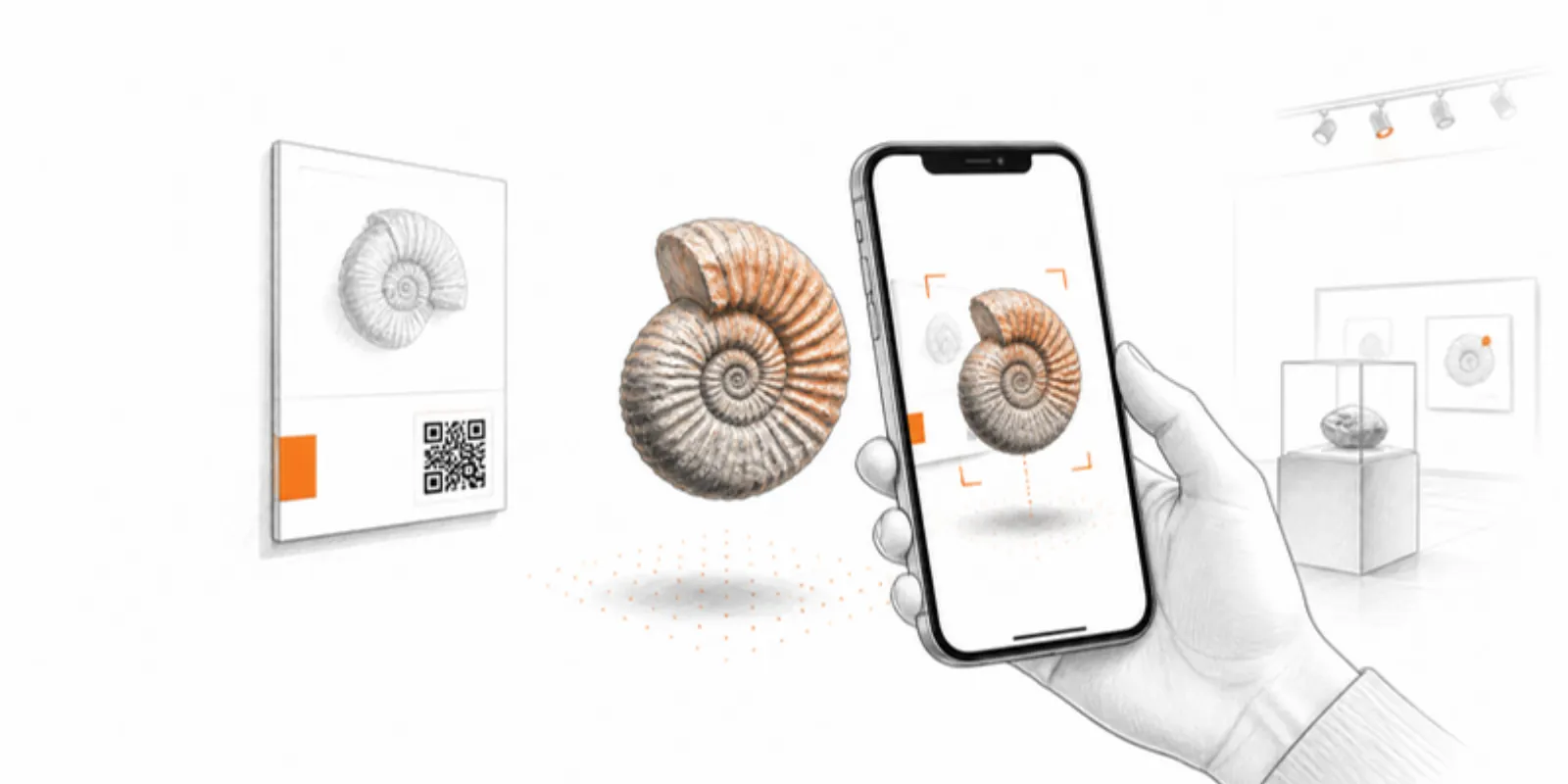
- Museums and collections. A label with a QR code lets visitors take an artefact home on their phone, which is how archaeology projects use it.
- Papers and theses. A QR code beside a figure lets reviewers open the model on the spot. See adding 3D models to research papers.
Tips for a good AR experience
- Keep the model light. A file of a few megabytes opens in seconds on a phone; a 200 MB scan does not. AcademicAR compresses uploads automatically, and our guide on reducing GLB file size covers what to do before upload.
- Use real size where it means something. Anatomy and artefacts read best at life size. Tiny structures (a cochlea, a protein) work better enlarged, so set a longest dimension that fits on a desk.
- Print the QR code large enough. About 3 cm wide is a safe minimum for a poster at arm’s length; larger if people scan from further away.
- Give people a surface. AR needs a textured, well-lit floor or table to find. A plain white tablecloth in dim light is the hardest case.
Troubleshooting
There’s no View in AR button. You’re probably on a laptop, where AR isn’t available; scan the QR code that appears instead. On Android, the phone may not support ARCore.
The QR code opens a page but AR won’t start. In-app browsers (inside a messaging or social app) often block the hand-off to the AR viewer. Open the link in Safari or Chrome.
The model is huge or tiny. The source file had no units or the wrong ones. Set the longest dimension on the model page; the link and QR code stay the same.
Frequently asked questions
Do I need an app to view a 3D model in AR?
No. iPhones and iPads use AR Quick Look and Android phones use Scene Viewer, both built into the system. A web viewer passes the model to them from the browser, so readers only scan a QR code or tap a link.
Does AR work on Android phones?
Yes, on phones that support ARCore with Google Play Services for AR, which covers most recent mid-range and flagship devices. The browser viewer still shows the model in 3D on phones without AR support.
What file formats does phone AR need?
iPhone and iPad need a USDZ file; Android uses a GLB. AcademicAR generates both from a single upload, so you only manage one model and one link.
Can I try it for free?
Yes. The free plan lets you upload a model and open it in the viewer and in AR on your own phone before you decide on a plan.
Create a free account and open your first model in AR on your phone.
Related guides
-
Share a Protein Structure in 3D and AR: Export from ChimeraX, Mol* or PyMOL
Turn a PDB, mmCIF or AlphaFold structure into an interactive 3D model readers can rotate in the browser and place in AR: export GLB from...
-
How to Share a Photogrammetry or LiDAR Scan as a 3D Link and AR Model
Export your Polycam, RealityScan, Metashape or Meshroom scan the right way (GLB, or OBJ with its textures), keep it light, set the real...
-
GLB to USDZ: How to Show a 3D Model in AR on iPhone
Why iPhone AR needs USDZ instead of GLB, the free ways to convert GLB to USDZ, and how to share one link that opens AR on both iPhone...