How to Add a 3D Model as Supplementary Material to a Journal Submission
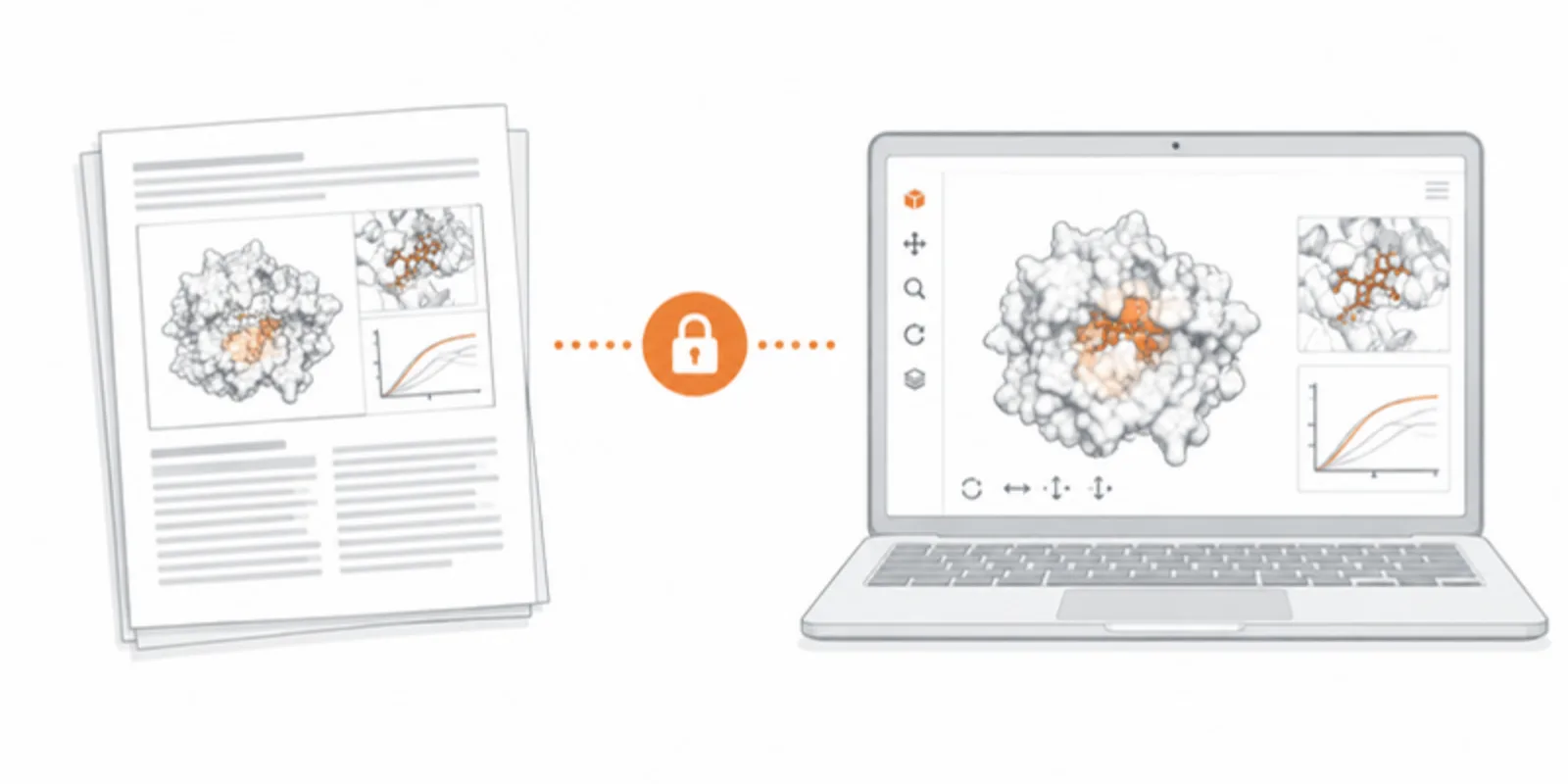
Reviewers are asked to judge a 3D result from two or three still pictures. A fracture pattern, a protein surface, a reconstructed fossil: the argument often lives in the angle you did not print. Supplementary 3D material lets reviewers check it themselves. Journals differ on what they accept, so the aim is a setup that works with strict rules and generous ones: a reviewable link, a static fallback, and a clean citation.
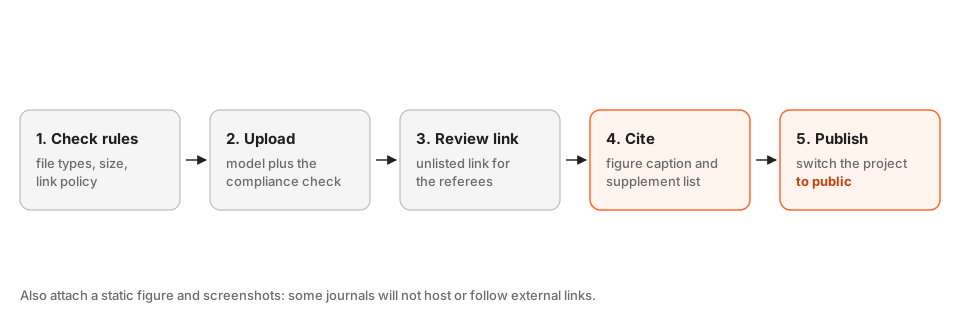
1. Read the author guidelines first
Look for three things in the journal’s instructions: whether external links in supplementary files are allowed, whether the journal hosts 3D files itself, and any file size or format limits. Most journals accept a link plus a static figure, and some publish the link in the online article. If the rules are unclear, ask the editorial office before you submit. It is a one-line email.
2. Upload the model and set it up for review
Upload the model, set the real size, and open it as a stranger would: on a phone and on a laptop, with no account. Check that the starting view is the one your figure shows, and that any layers are named in plain words (bone, implant, cartilage). Reviewers will click through them. If your model is medical, finish the confirmations first, see anonymising medical 3D models.
3. Send referees a Review link, not a public one
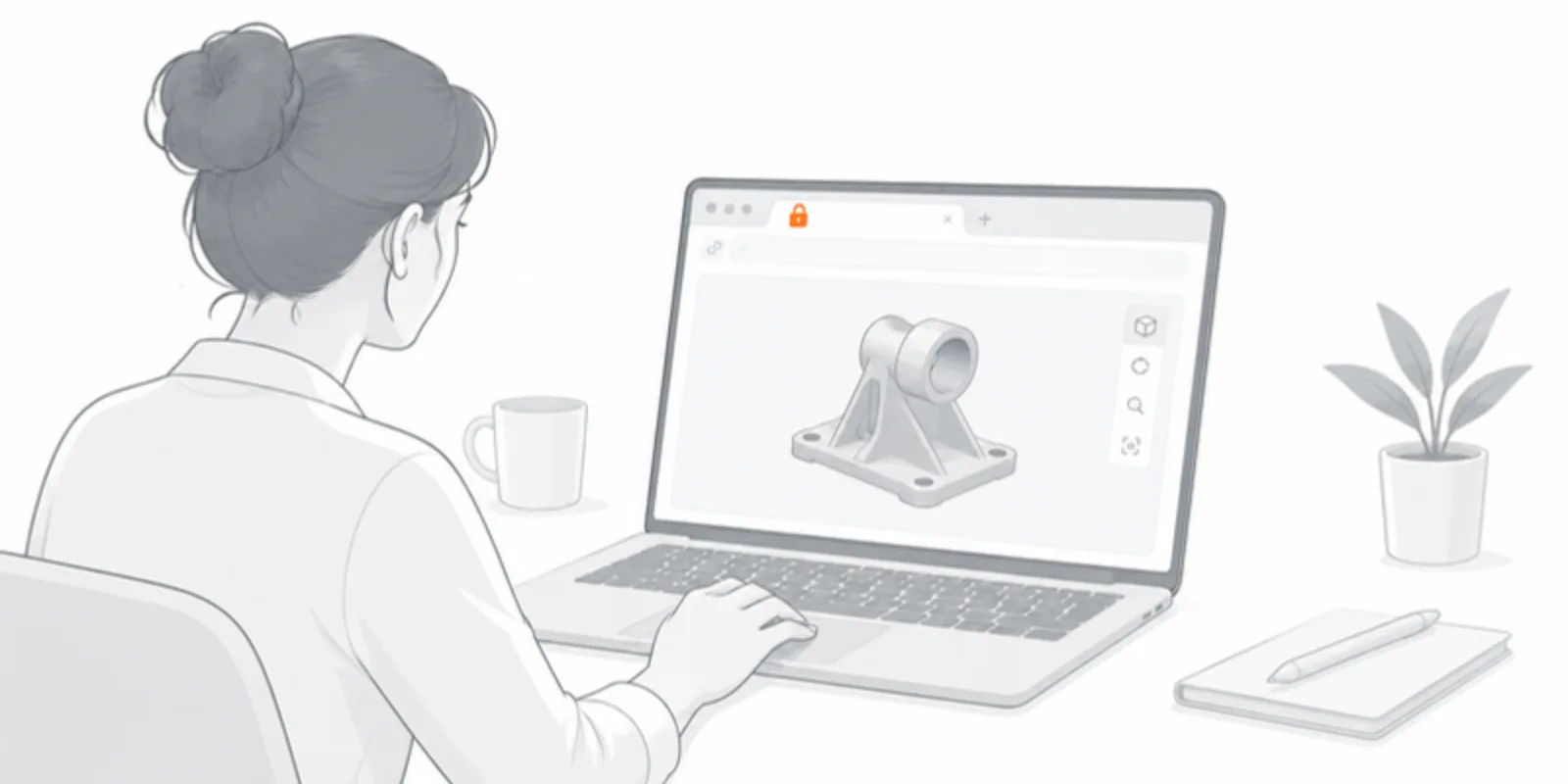
Peer review is usually confidential and often blind. Set the project to Review link: it is unlisted, so only people who receive the address can open it, and it does not need an account. Put the link in the cover letter or the supplementary file list. If the review is double blind, check that the model title, layer names and any attribution do not reveal your identity or institution.
4. Cite the model where it is used
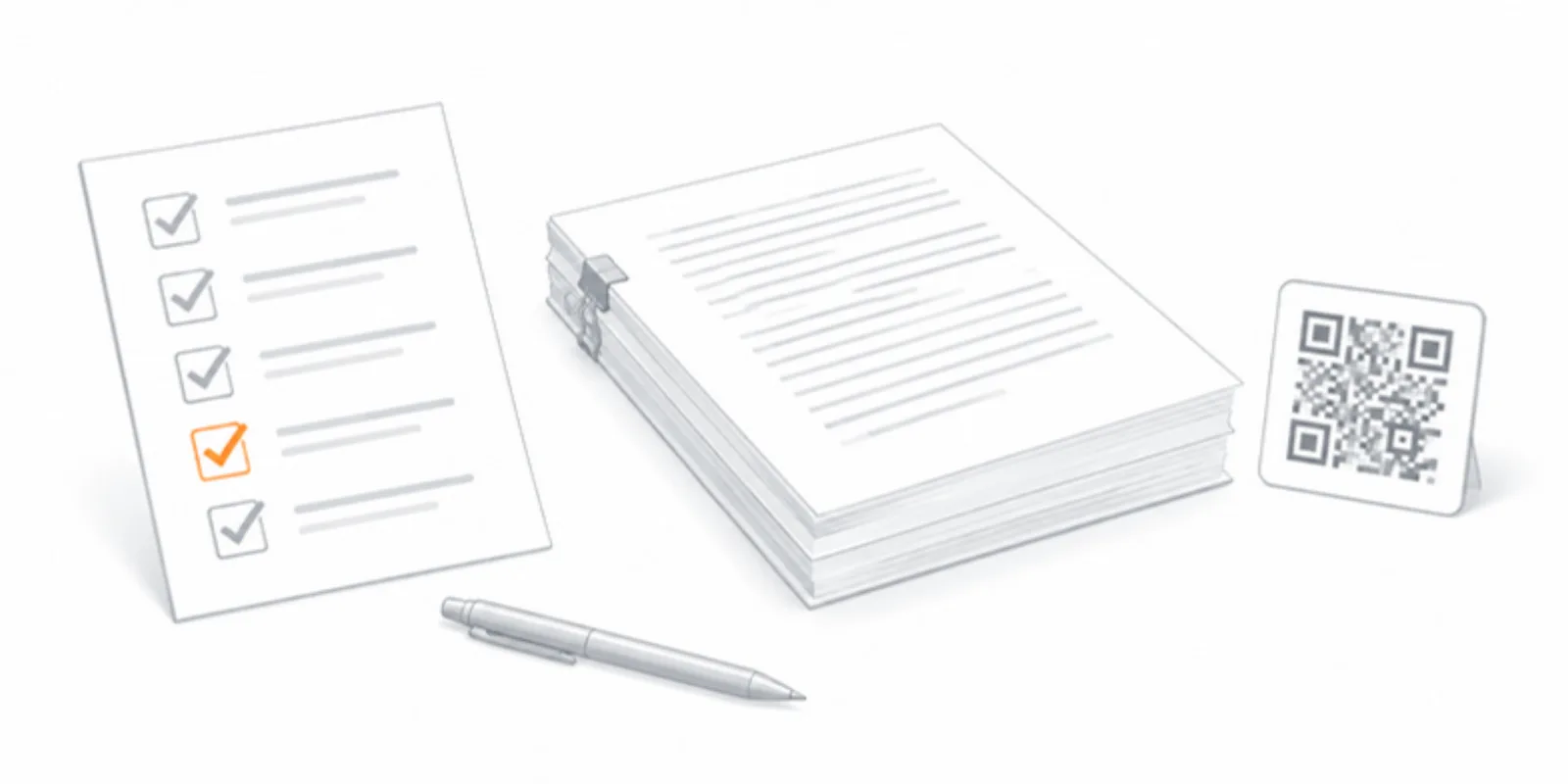
Reviewers should never have to hunt for it. In the figure caption write, for example, “Interactive 3D model: [link]. Layers can be switched on and off.” In the supplementary list, give it its own item: “Supplementary Model S1: interactive 3D reconstruction of specimen A.” Include the text address as well as the QR code, since the PDF is read on screens. For figures that compare two conditions, publication-ready 3D figures and comparisons shows how to make both views reproducible.
5. Attach a static fallback
Always include ordinary images of the key views, and consider a short screen recording. Some reviewers work offline or behind a firewall, and some journals will strip links from files. The fallback protects your argument; the live model is the bonus.
6. Go public at publication and archive the source
When the paper is accepted, switch the project from Review link to public and use the final link in the published version. For long-term availability, deposit the source files with a DOI, as described in cite and archive 3D models. The journal cares about the paper; funders and readers care about the data. For the broader picture see interactive 3D figures in scientific publishing.
Frequently asked questions
Will the journal accept a link instead of a file?
Many do, as supplementary information or in the data availability statement. Some require files to be hosted by the journal. Check the guidelines, and give both a link and a static figure to be safe.
Can reviewers open the model without creating an account?
Yes. A Review link opens in any browser, on a phone or a computer, without an account and without installing anything.
What if the review is double blind?
Use a neutral model title and layer names, avoid logos and institutional text in the model, and do not mention your name in the project description. Switch the details back on when the paper is published.
How do I keep the link working after publication?
Keep the project public and deposit the source files in a repository with a DOI. If you improve the model later, replace it: the viewer link stays the same, so the published article keeps pointing at a working model.
Create a free account and send your next submission with a 3D model reviewers can actually open.
Related guides
-
How to Put Interactive 3D Models in Your Thesis or Dissertation
A practical way to give a thesis chapter a live 3D model: prepare and size the model, save fixed views for print, add a link and QR code...
-
How to Cite and Archive a 3D Model: Zenodo, DOIs and FAIR Data
Make your 3D data findable and reusable: describe it properly, give readers a stable viewer link, deposit the source files in a...
-
Share a Protein Structure in 3D and AR: Export from ChimeraX, Mol* or PyMOL
Turn a PDB, mmCIF or AlphaFold structure into an interactive 3D model readers can rotate in the browser and place in AR: export GLB from...