How to Share a Photogrammetry or LiDAR Scan as a 3D Link and AR Model
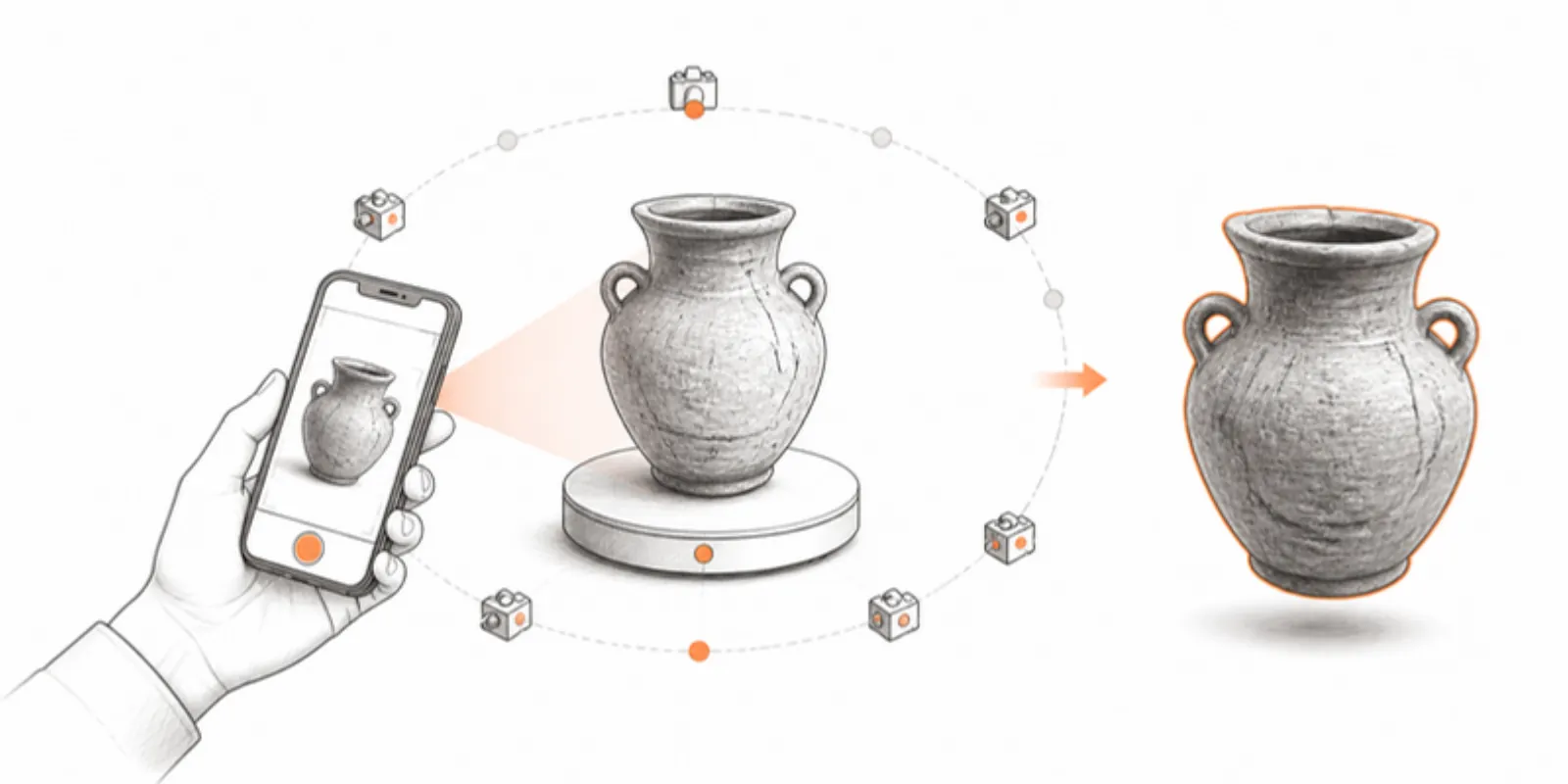
Photogrammetry and phone LiDAR have made 3D capture almost free. A few hundred photos of a pot, a fossil, or a sculpture become a textured model in an afternoon. Sharing it is where things get stuck: the scanning app wants your viewers to use its own platform, the export comes as a folder of files, and the model is too heavy for a phone. Here’s a clean path from scan to a link and QR code that anyone can open, in 3D and in AR.
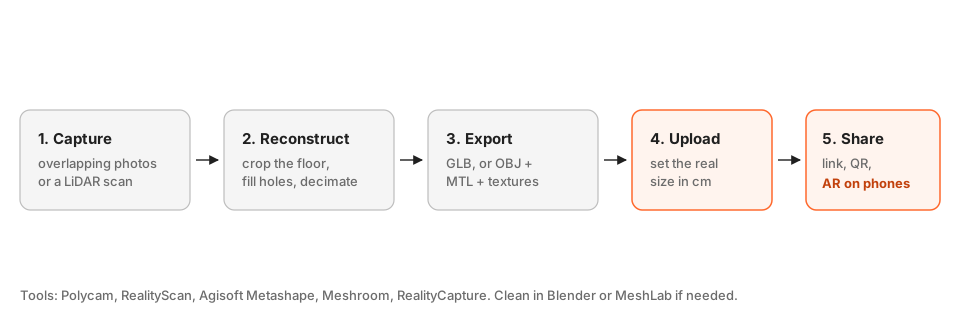
1. Capture and reconstruct
Any reconstruction tool works: Polycam or Scaniverse on a phone, RealityScan, Agisoft Metashape, RealityCapture, or the open-source Meshroom on a desktop. Before exporting:
- Crop the turntable, the floor, and floating fragments.
- Fill holes if the tool offers it, especially under the object.
- Include a scale bar in the photos when you need true measurements; photogrammetry has no inherent scale.
2. Export the right format
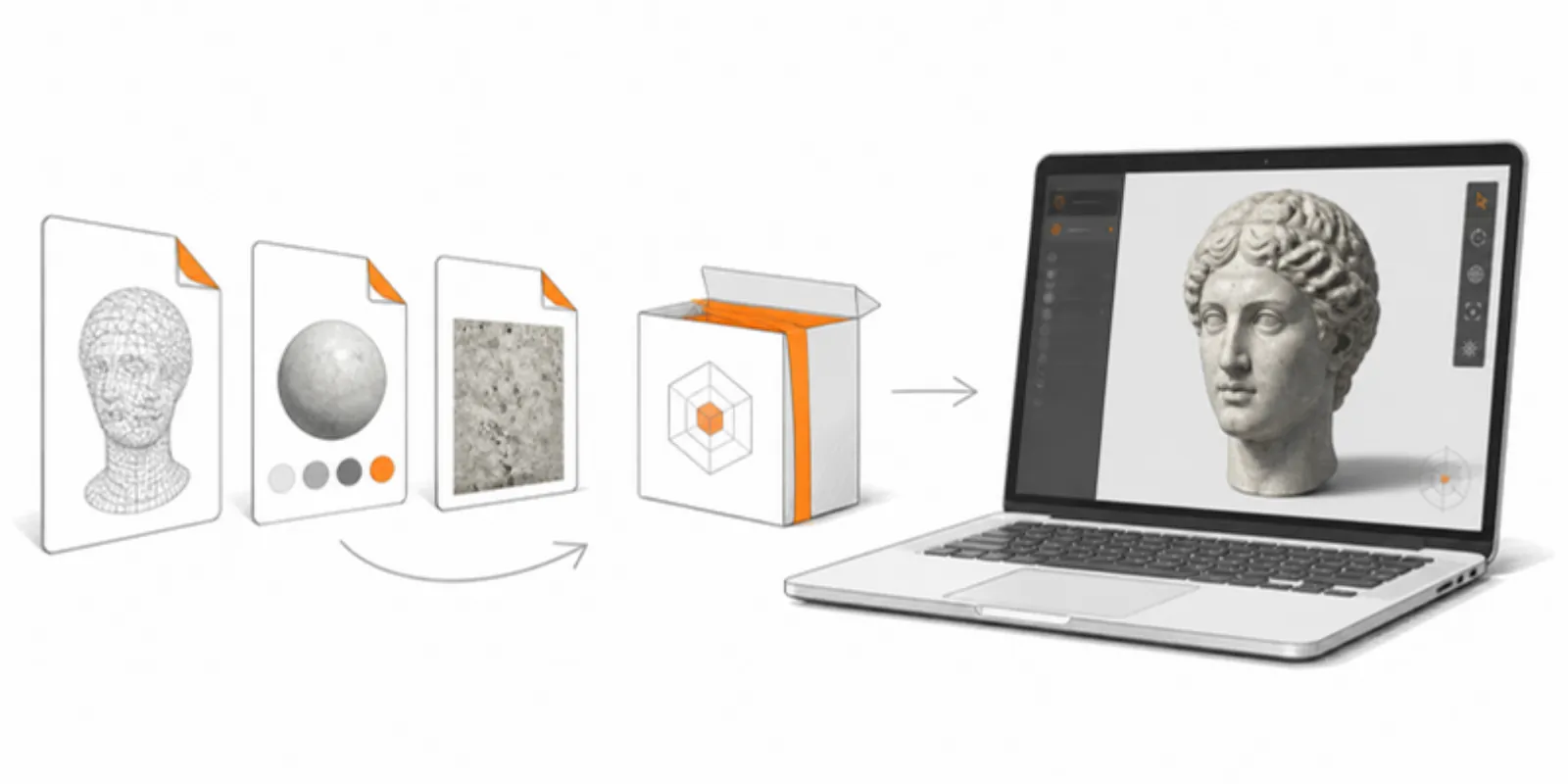
Choose GLB when your tool offers it: one file with geometry and textures together. Otherwise choose OBJ, which comes as three parts:
model.obj, the geometry;model.mtl, the material file that names the textures;- one or more texture images (
.jpgor.png).
Upload all of them together. When an OBJ scan shows up grey, the cause is almost always a missing texture or an MTL that points to a folder on the computer that made it. Keep the three parts in one folder with their original names before uploading. More detail in OBJ and FBX to GLB.
3. Keep it light
Desktop reconstructions often produce several million triangles and 8K textures: fine for archiving, too heavy for a phone. Export a web version next to your master:
- decimate to roughly 200,000 to 500,000 triangles;
- bake or keep textures at 2048 or 4096 pixels, as JPEG.
AcademicAR compresses geometry with Draco and caps texture size on upload, so a moderately heavy scan still becomes phone-ready. For the details, see how to reduce GLB file size. Keep the full-resolution master in your archive or repository.
4. Upload and set the real size
Upload the GLB, or the OBJ with its MTL and textures, to a project. For OBJ you choose the unit it was made in; for any model you can later set the real longest dimension in centimetres under Resize model. Do that whenever the scan has no scale, so the pot in AR is the size of the pot on the shelf.
5. Share it
Every model gets a viewer link and a QR code:
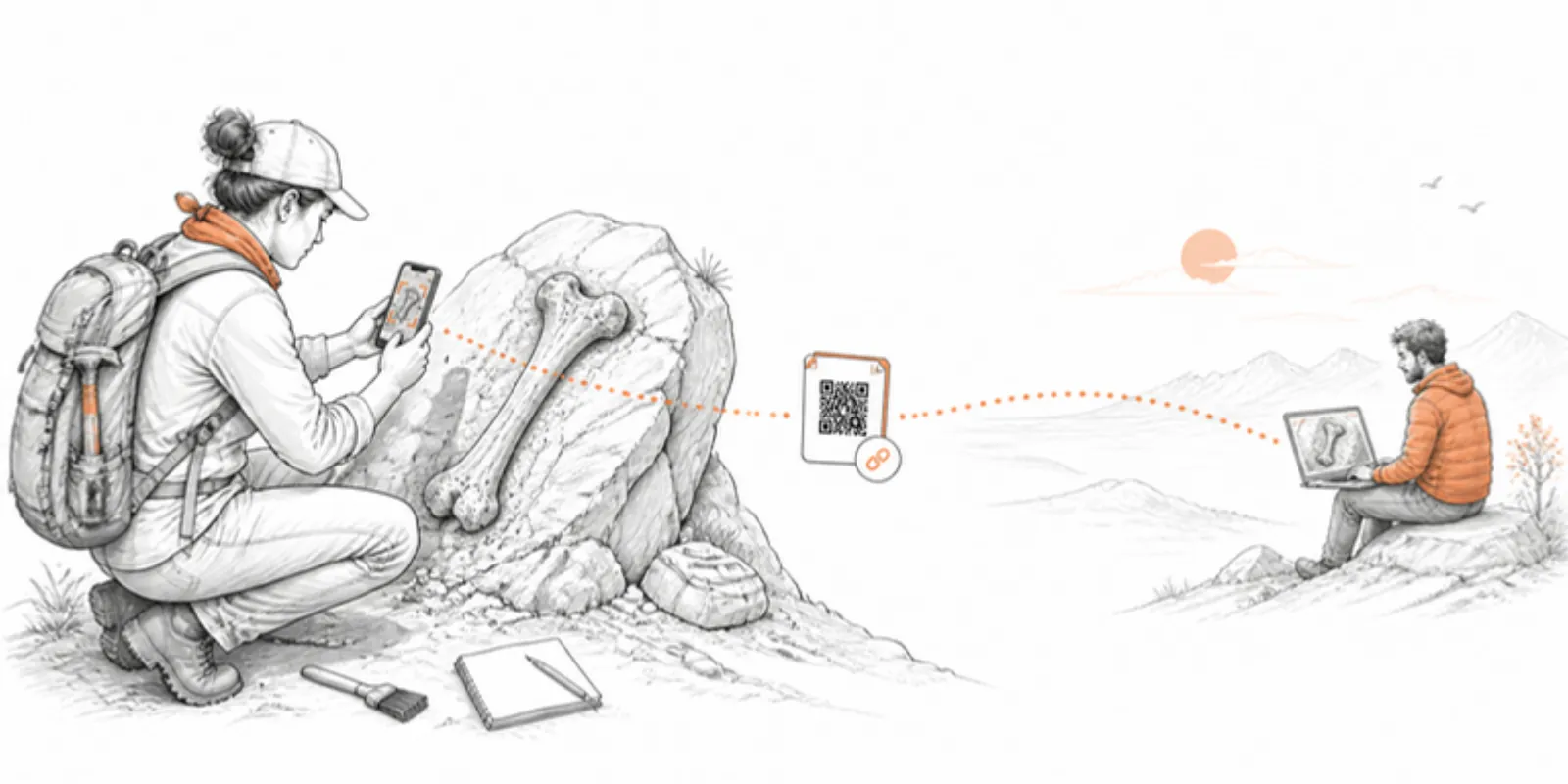
- Put the QR code on a museum label, an excavation report, or a poster.
- Embed the viewer on a project website.
- Send the link to colleagues; it opens in the browser, with no account needed to view.
- On a phone, View in AR places the object at real size; see AR without an app.
If you re-scan or clean the model later, Replace model keeps the same link and QR code, so printed labels never go stale.
Rights and ethics
Check that you may publish a 3D copy. Museum objects, private collections, and cultural heritage can carry reproduction rights or community restrictions, and human remains call for particular care and consent. AcademicAR asks you to confirm rights and ethics responsibility on every upload. For field and collection workflows, see our archaeology AR guide.
Frequently asked questions
Can I share a Polycam scan without a Polycam account?
Yes. Export the scan as GLB or OBJ from Polycam, upload it to AcademicAR, and share the viewer link or QR code. People who open it don’t need an account or an app.
Why does my OBJ scan look grey after upload?
The textures didn’t come along. Upload the .obj together with its .mtl file and every texture image it names, keeping the original file names.
How big should a scan be for the web?
As a rule of thumb, a few hundred thousand triangles and textures of 2048 to 4096 pixels. That loads quickly on phones and still looks sharp; keep the full-resolution version for archiving.
Will the scan show at real size in AR?
Yes, once its size is right. Photogrammetry has no built-in scale, so set the longest dimension in centimetres on the model page; AR then places the object at that size.
Create a free account and share your first scan as a link and QR code.
Related guides
-
How to View a 3D Model in AR Without an App (iPhone and Android)
Open a 3D model in augmented reality from a link or QR code with nothing to install: how AR Quick Look and Scene Viewer work, which...
-
Share a Protein Structure in 3D and AR: Export from ChimeraX, Mol* or PyMOL
Turn a PDB, mmCIF or AlphaFold structure into an interactive 3D model readers can rotate in the browser and place in AR: export GLB from...
-
GLB to USDZ: How to Show a 3D Model in AR on iPhone
Why iPhone AR needs USDZ instead of GLB, the free ways to convert GLB to USDZ, and how to share one link that opens AR on both iPhone...