How to Put 3D Finds into an Archaeological Excavation Report
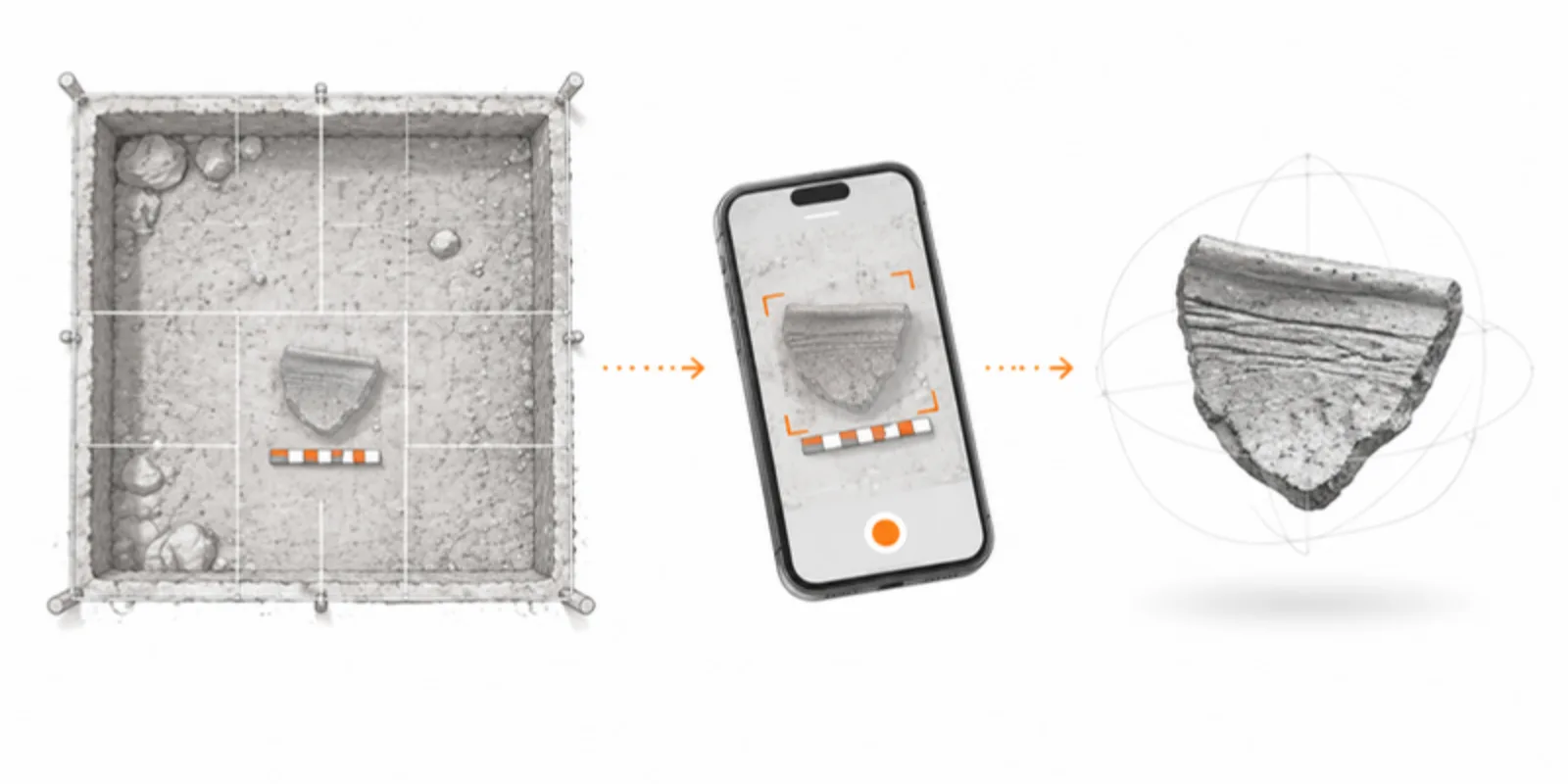
An excavation report describes hundreds of finds in a few lines each and one drawing per object. The specialist sees the sherd in their hand, and the reader sees a line drawing. A 3D model for each important find keeps what the drawing cannot: the fabric, the wear, the profile from every side. Linked from the catalogue entry, it turns a report into an archive that people can explore.
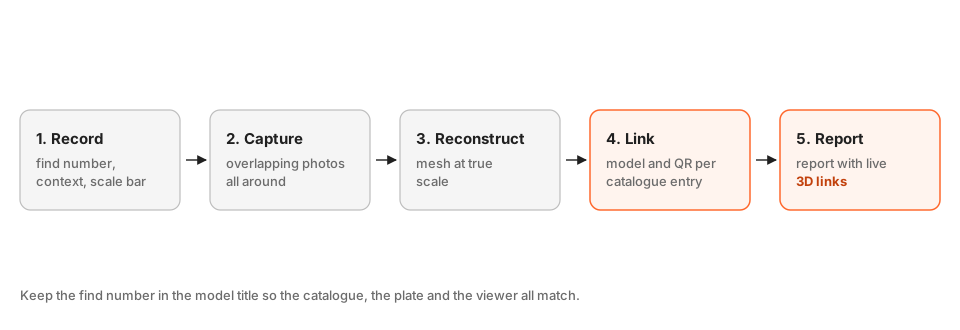
1. Record the find before you scan it
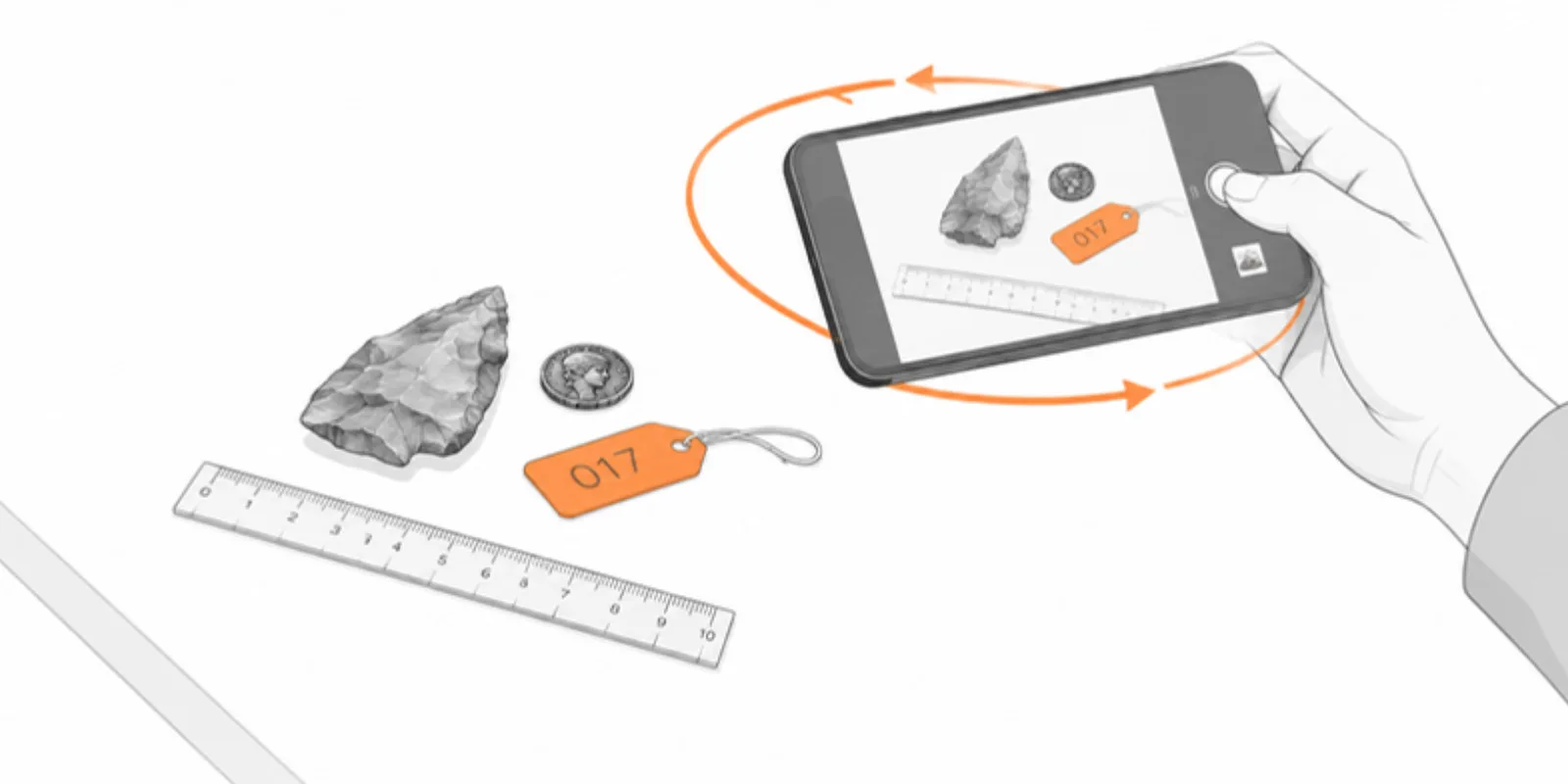
A model is only useful if it can be matched to its context. Before capture, write down the find number, context and trench, and photograph the object with a scale bar and a find tag in the first frame. This takes ten seconds and prevents the most common problem, models nobody can identify a year later. Keep the find number in the model title, so the catalogue, the plate and the viewer all match.
2. Capture with photogrammetry or a phone scanner
For small finds, take 40 to 80 overlapping photos around the object on a turntable or a stand, with even light and a plain background. A phone LiDAR scanner works for larger objects and features. Include the scale bar in the frame. The full workflow, with export options, is in how to share a photogrammetry or LiDAR scan.
3. Reconstruct at true scale
Reconstruct the model in Polycam, RealityScan, Metashape or Meshroom, crop the background, and export GLB, or OBJ with its MTL and textures. Photogrammetry has no built-in scale, so use the scale bar to set the size. In AcademicAR, enter the real longest dimension with Resize model, and the object appears at that size in AR. For how this works see real-size AR. Keep each model light: a few megabytes is plenty for a sherd, and reducing GLB file size lists what to trim.
4. Give every catalogue entry a model and a QR code
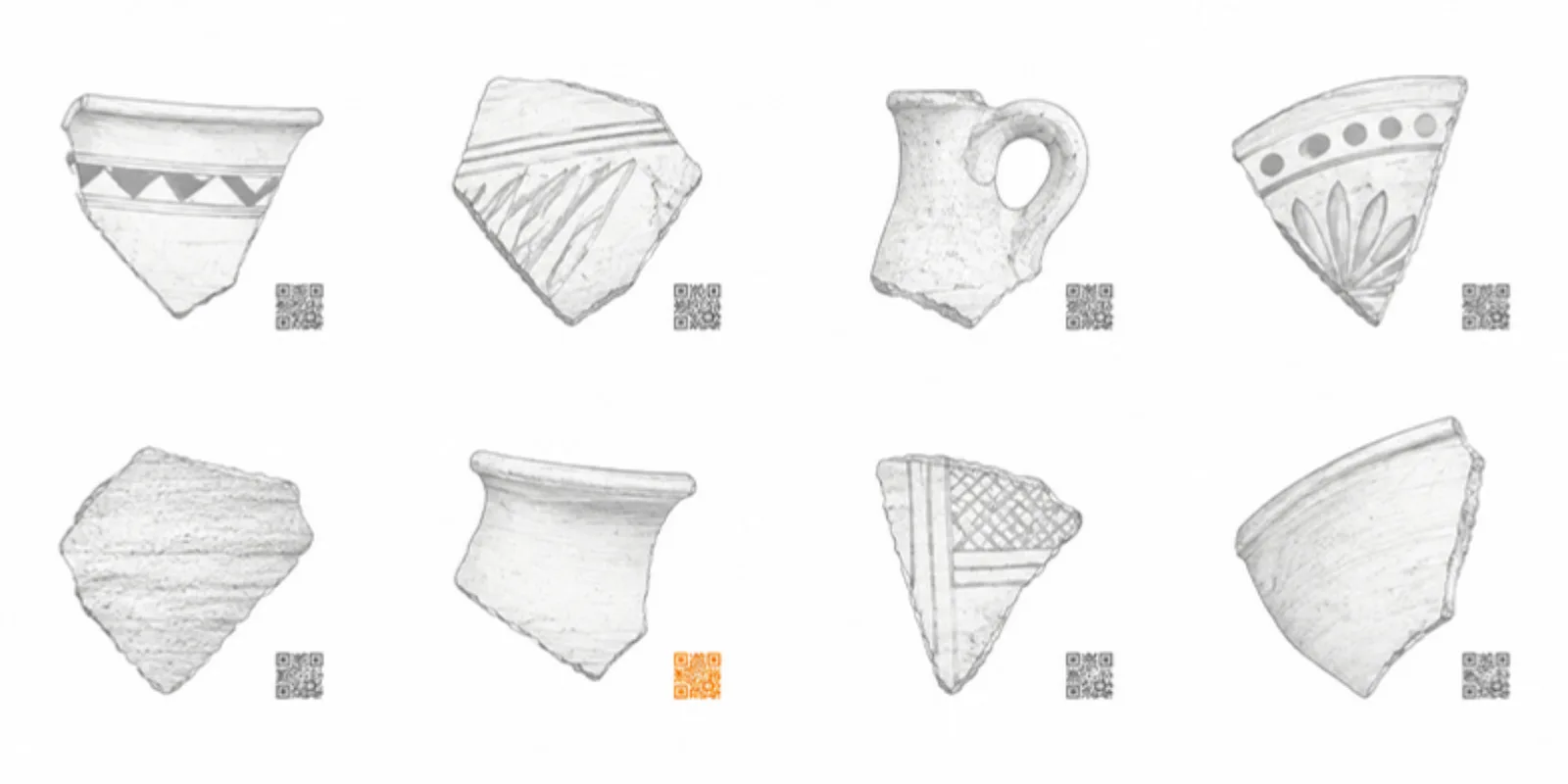
Upload the finds as one project per site or per trench, and one model per find. Each model has a stable link and QR code, so the catalogue can carry a small QR beside the find number. The same QR code works on the printed plate, on the museum label and in the online catalogue. If a model gets better, replace it, and the printed codes keep pointing at the latest version. Sizing rules for printed codes are in QR codes on academic posters.
5. Write the report with live 3D links
In the finds chapter, give each model-backed find a line such as “Sherd 214, context 37, rim and neck of a jar. 3D model: [link].” Keep the drawing in the report: it is the conventional record, and the model is the extension. Use a Review link while the report is under peer review or an embargo, and switch the project to public at publication. For site displays, a museum case with a QR plaque and AR on the phone brings the find into the visitor’s hand, see AR for archaeology.
6. Archive the raw data separately
A viewer is for exploring. For long-term preservation, deposit the photo sets and the models in your national archive or a repository with a DOI, see cite and archive 3D models.
Frequently asked questions
Which finds are worth modelling?
Start with diagnostic or unusual pieces: complete vessels, decorated sherds, tools with use wear, inscribed objects, and anything fragile that will be handled less if the model exists. Do not try to model every sherd.
How do I make sure the scale is right?
Put a scale bar in the photos, measure the longest side of the model against it, and enter the real size with Resize model. Check once in AR against a ruler.
Can I use it for objects under heritage restrictions?
Check the permit and the owner’s conditions. Use a Review link while the conditions are unclear, and share publicly only what you are permitted to.
Do I need an expensive scanner?
No. A phone or a camera and a free or low-cost reconstruction app are enough for most small finds, provided the photos overlap and the light is even.
Create a free account and put your next find into the catalogue as a model with a QR code.
Related guides
-
How to Put Interactive 3D Models in Your Thesis or Dissertation
A practical way to give a thesis chapter a live 3D model: prepare and size the model, save fixed views for print, add a link and QR code...
-
How to View a 3D Model in AR Without an App (iPhone and Android)
Open a 3D model in augmented reality from a link or QR code with nothing to install: how AR Quick Look and Scene Viewer work, which...
-
AR for Archaeology: Bringing Artifacts to Life in 3D
How 3D scanning and augmented reality help archaeologists share, study, and teach with fragile artifacts — without risking the originals.