How to Share FEA and CFD Simulation Results as an Interactive 3D Model
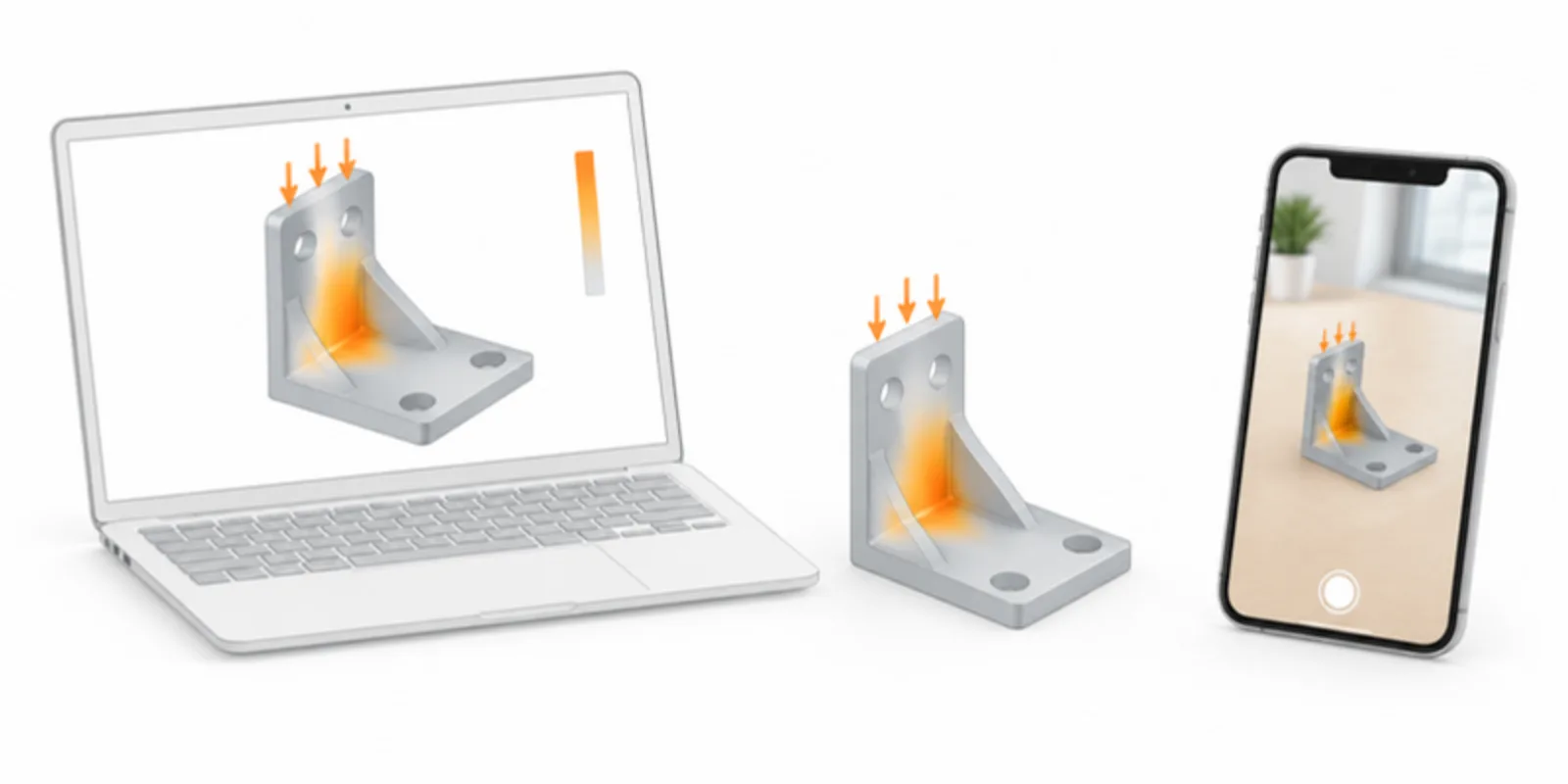
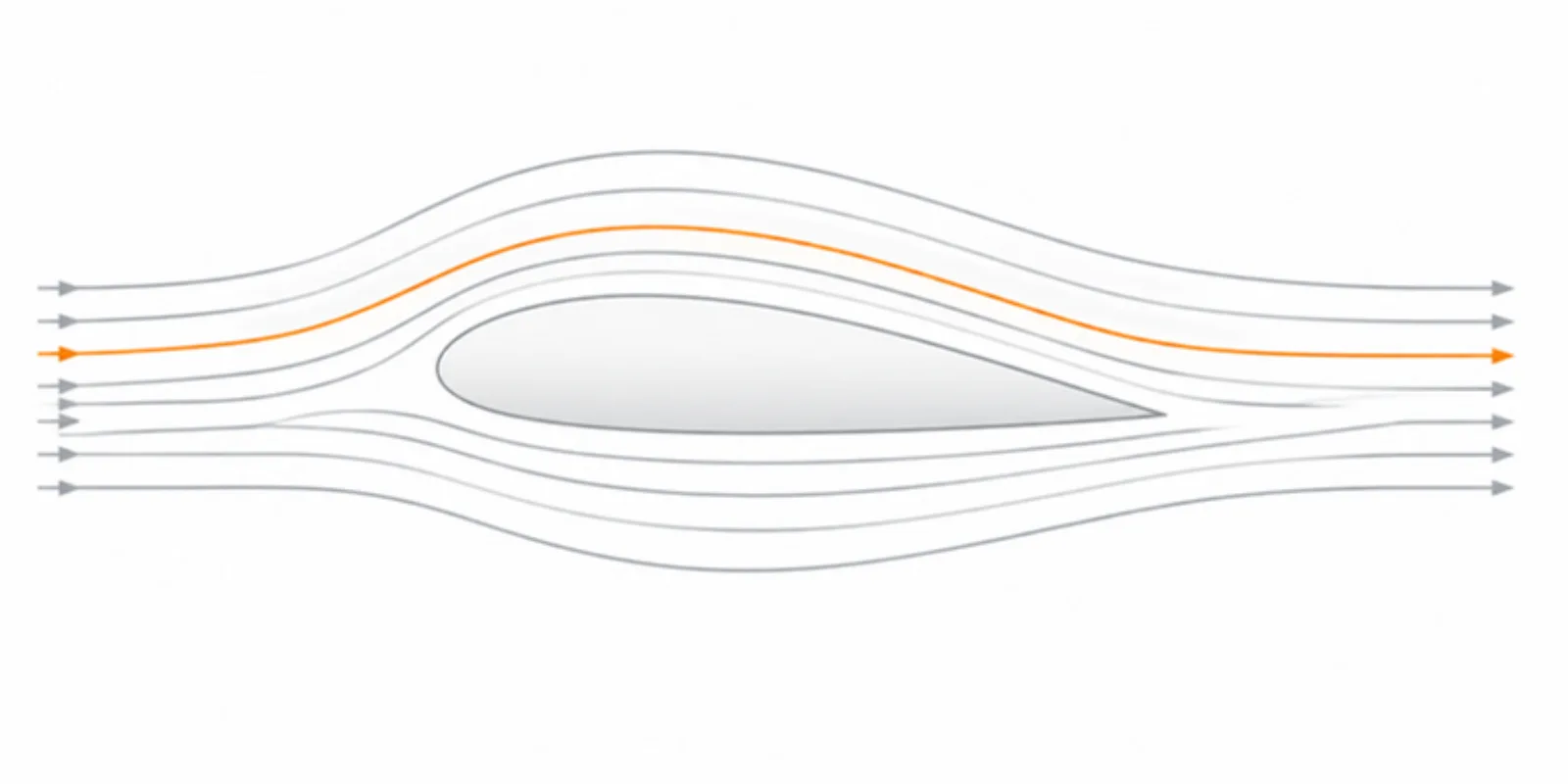
A stress plot in a paper is one camera angle chosen by the author. The hotspot that matters to a reader may sit on the side you did not show, and a streamline plot hides the recirculation behind the part. Simulation results are 3D, and a reader who can turn the model checks your claim in seconds. The solver’s own viewer is not an option for sharing, because it needs the software, a licence and the project file. A GLB opens in any browser.
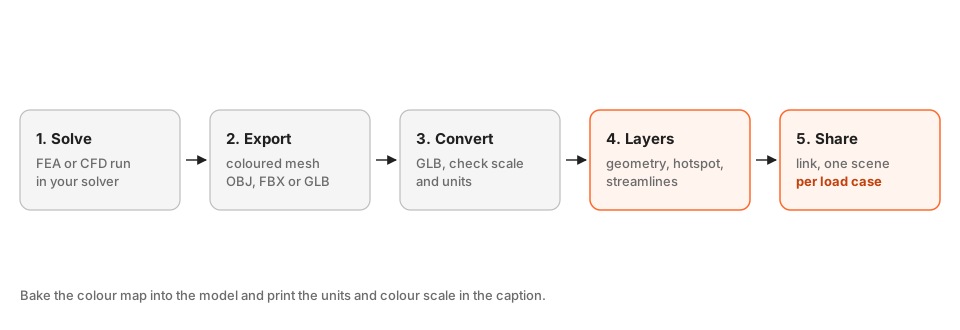
1. Export a surface mesh with the result on it
Most tools can write the result field painted on the surface: Ansys, Abaqus, COMSOL, OpenFOAM through ParaView, Fusion or SolidWorks Simulation. Export a mesh with the colours included, in a format that carries them: GLB or OBJ or FBX with the colours stored in a texture or in the vertices. ParaView and Blender are good bridges if your solver cannot export these directly. Check the result in the viewer after upload, because the safest way to know that the colours survived is to look.
2. Bake the colour scale into the model, and print it in the caption
A colour map without a legend is decoration. The legend does not live inside the 3D model, so put it in the figure caption or next to the QR code:
Figure 6. Von Mises stress (MPa) under a 2 kN tip load. Colour scale 0 to 240 MPa, linear. Interactive model: [link].
State the units, the min and max, and whether the scale is linear or logarithmic. For comparisons between load cases, use the same scale in every model, otherwise the colours lie.
3. Check scale and units after conversion
Solvers work in metres, millimetres or inches, and exports do not always say which. After upload, open the model and set the real size with Resize model (the real longest dimension in cm), so a 40 mm bracket is 40 mm in AR. Keep the file light as well: a dense solver mesh can run to millions of triangles. The upload optimises geometry for the web, and reducing GLB file size explains what else helps, such as exporting the surface only, without the internal volume mesh. Format questions are covered in OBJ and FBX to GLB.
4. Separate geometry from results with layers
A multi-part model gets a Layers panel. Export the geometry, the results surface, boundary condition markers and streamlines as separate named parts, so readers can hide the colour map and see the bare geometry, or isolate one streamline bundle. If the design comes from a CAD assembly, keep it as one assembly with named parts, see STEP and CAD assemblies in AR.
5. One scene per load case
Save a scene for each load case or time step, with the camera, layers and section you want: Load case 1, Load case 2, Optimised design. Readers jump between them, and a tour plays them in order. The saved scenes guide covers it, and the section plane lets readers cut through a part to see the interior stress or the flow in a channel (section plane and slice view).
6. Put it in the paper, the report or the review
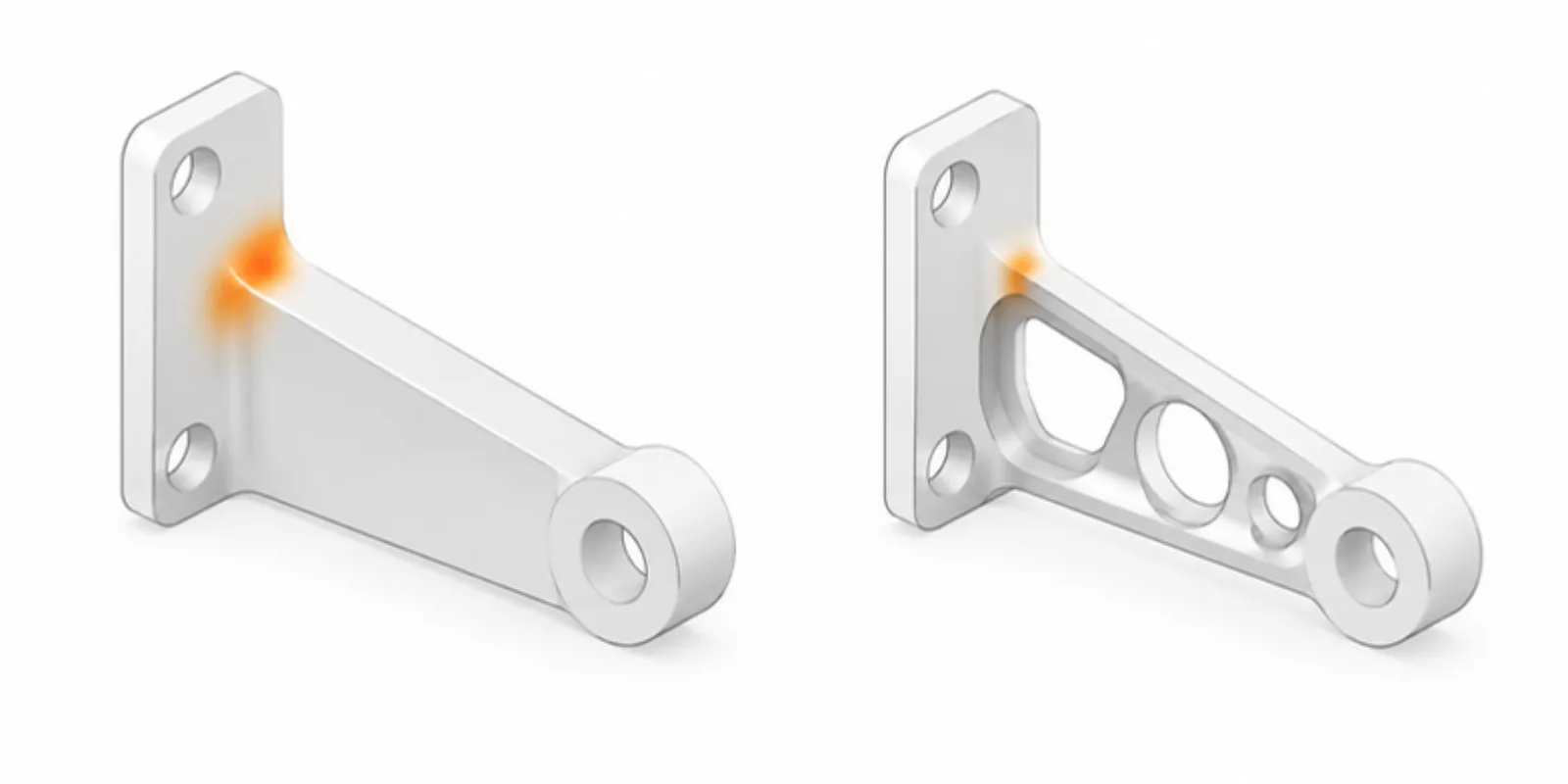
Use the link and QR code in the caption, in the thesis, or in a client report. For a design review, a phone with AR shows the optimised bracket at real size next to the actual part. For publication-quality still images, the comparison and figure export tools help you put two designs side by side.
Frequently asked questions
Which formats keep the result colours?
GLB is the most reliable, and OBJ or FBX can carry colours in a texture or in the vertices. Export a test, upload it, and check the colours in the viewer before you build the figure around it.
How do I show the legend of the colour map?
Put it in the figure caption or on the slide next to the QR code, with units, the minimum and maximum and the scale type. The viewer shows the model, and the caption carries the numbers.
Can I show a time-dependent or transient result?
Export a few key time steps as separate models or layers and save one scene for each. For smooth animations of every step, a video next to the model is the better tool.
My solver mesh is huge. Will it open on a phone?
Export the surface only, remove internal volume elements, and decimate if you can. The upload is optimised for the web, and a lighter file opens faster on a phone.
Create a free account and share your next simulation result as a model readers can turn.
Related guides
-
How to Put Interactive 3D Models in Your Thesis or Dissertation
A practical way to give a thesis chapter a live 3D model: prepare and size the model, save fixed views for print, add a link and QR code...
-
How to Add a 3D Model as Supplementary Material to a Journal Submission
Make your 3D data reviewable and citable: check the journal's rules, send referees a private Review link, cite the model in the figure...
-
How to Cite and Archive a 3D Model: Zenodo, DOIs and FAIR Data
Make your 3D data findable and reusable: describe it properly, give readers a stable viewer link, deposit the source files in a...